Business settings
Set up WhatsApp, bank details and the reminder message
Add the WhatsApp number and bank account customers see, and write the message you send to people who owe.
Step 1: How reminders work
When you tap remind on a customer's debt, ShopBook opens WhatsApp on your phone with the message already written. You look at it and press send yourself. Nothing is sent by itself.
Be careful:The message goes from the WhatsApp on the phone you're using. Use the business phone so customers see the business number.
Step 2: Business WhatsApp number
Under For the whole business, type your WhatsApp number. Customers can message you on it, and it shows on receipts.
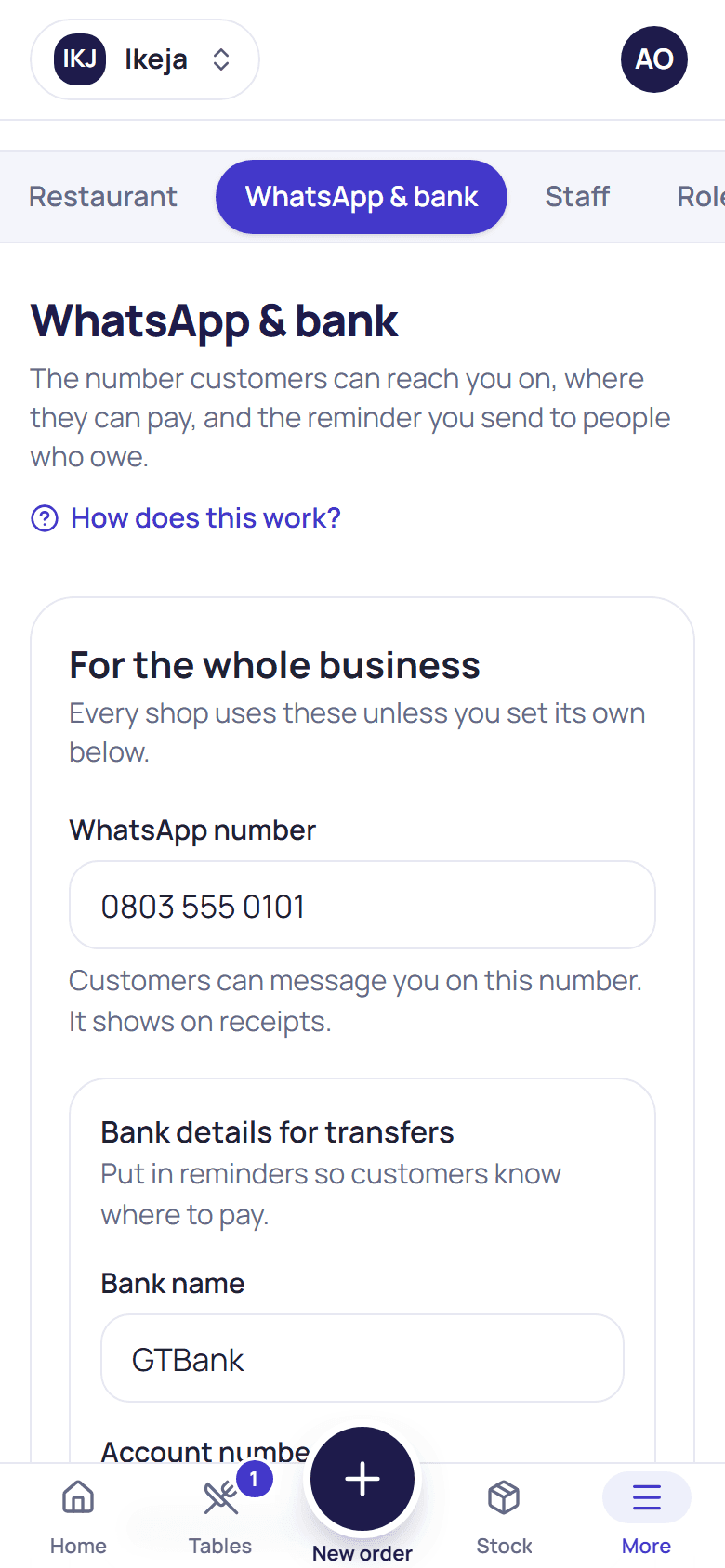
Step 3: Bank details for transfers
Fill in Bank name, Account number and Account name (for example GTBank, 0123456789, Adaeze Stores Ltd). They go into reminders so customers know where to pay.
Step 4: Write the reminder message
Under Reminder message, change the words as you like. Tap a box to add a detail that fills in by itself:
- Customer's name
- Amount still owed
- Shop name
- Pay-back date
- Your WhatsApp number
- Your bank details
Tip:If the bank details or WhatsApp number are empty, the lines that use them are left out. Tap Use the standard message to go back to ShopBook's wording.
Step 5: Check and save
What Ada will see shows the message with a sample customer. When it reads well, tap Save changes.
Step 6: A shop with its own number or account
Under A shop's own details, pick the shop and fill in only what is different. Leave a box empty to use the business number or account. Tap the save button under it.