Business settings
Your plan, free trial and payments
How the free trial works, what read-only mode means, and how to pay, change plan or cancel.
Step 1: Your free trial
Every new business gets a 14-day free trial with no card needed. Billing shows how many days are left and when it ends. During the trial you get the limits of the Growth plan.
Step 2: See what you've used
What you've used shows your Shops, Staff accounts and Sales this month against your plan's limits. Invites not yet accepted count as staff accounts.
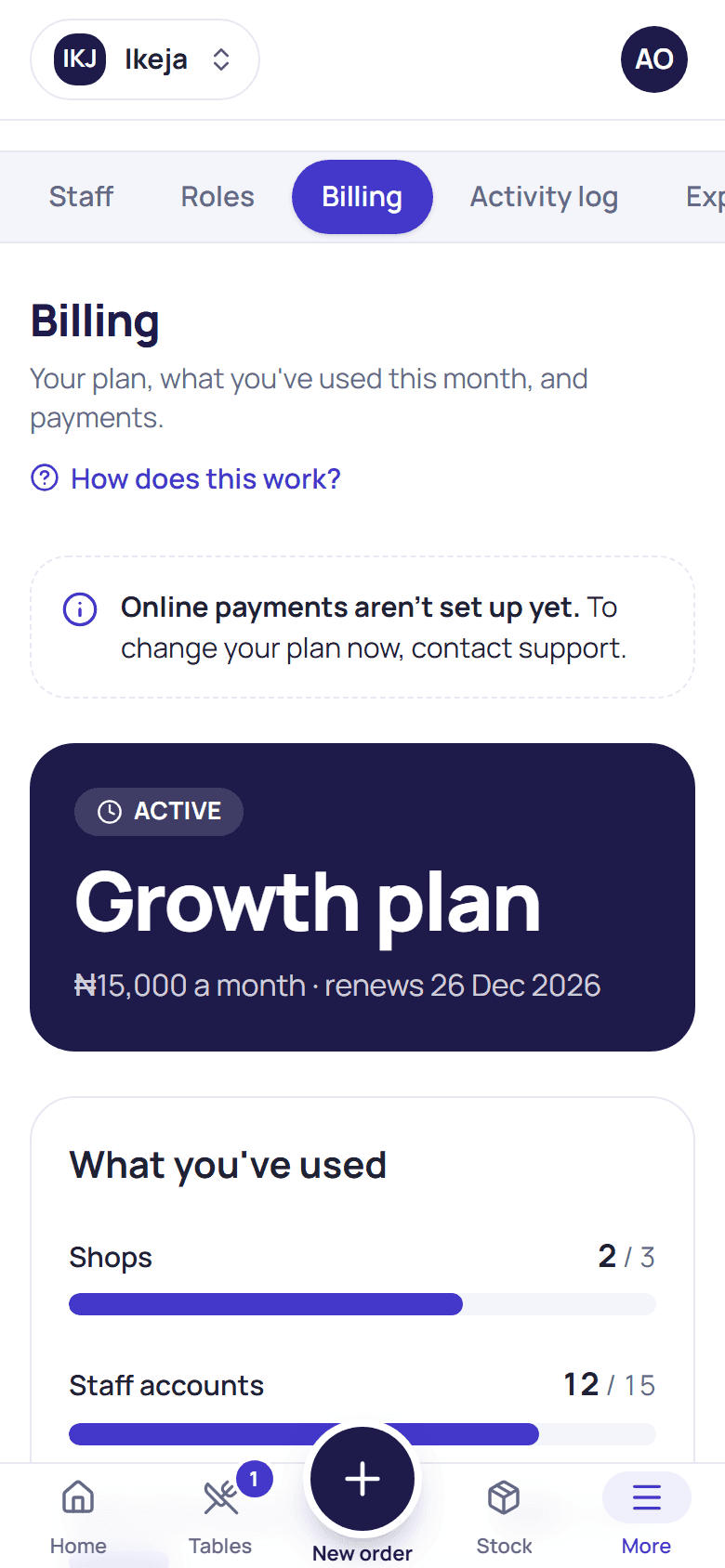
Step 3: Choose or change a plan
Under Choose a plan (or Change plan), each plan lists its shops, staff and sales a month. See Settings → Billing for today's prices. Tap the Choose button under the plan you want, for example Choose Growth.
Be careful:If you have more shops or staff than a smaller plan allows, its button is off. Archive shops or deactivate staff first.
Step 4: Pay with Paystack
ShopBook takes you to Paystack to pay safely. When you're done you come back to Billing and see Payment received. It then renews each month by itself.
Tip:Changing plan starts a new monthly payment. Your old plan is cancelled for you.
Step 5: Read-only mode
If the trial ends without a plan, or a payment isn't made, the business goes read-only. Everyone can still look at sales, stock and reports, download data and send debt reminders, but new sales and changes are paused. A failed renewal gets a few days' grace first. Tap Renew now in the banner, or choose a plan in Billing, to switch everything back on.
Be careful:Only the owner can pay. Staff see Ask the business owner to renew.
Step 6: Cancel
At the bottom of Billing, tap Cancel subscription, then Yes, cancel. Everything keeps working until the end of the month you paid for, then becomes read-only. Nothing is deleted, and you can pay again any time.