Business settings
Set up your receipts
Add your own message to the top and bottom of receipts, choose the paper size and print a test.
Step 1: Open Receipts
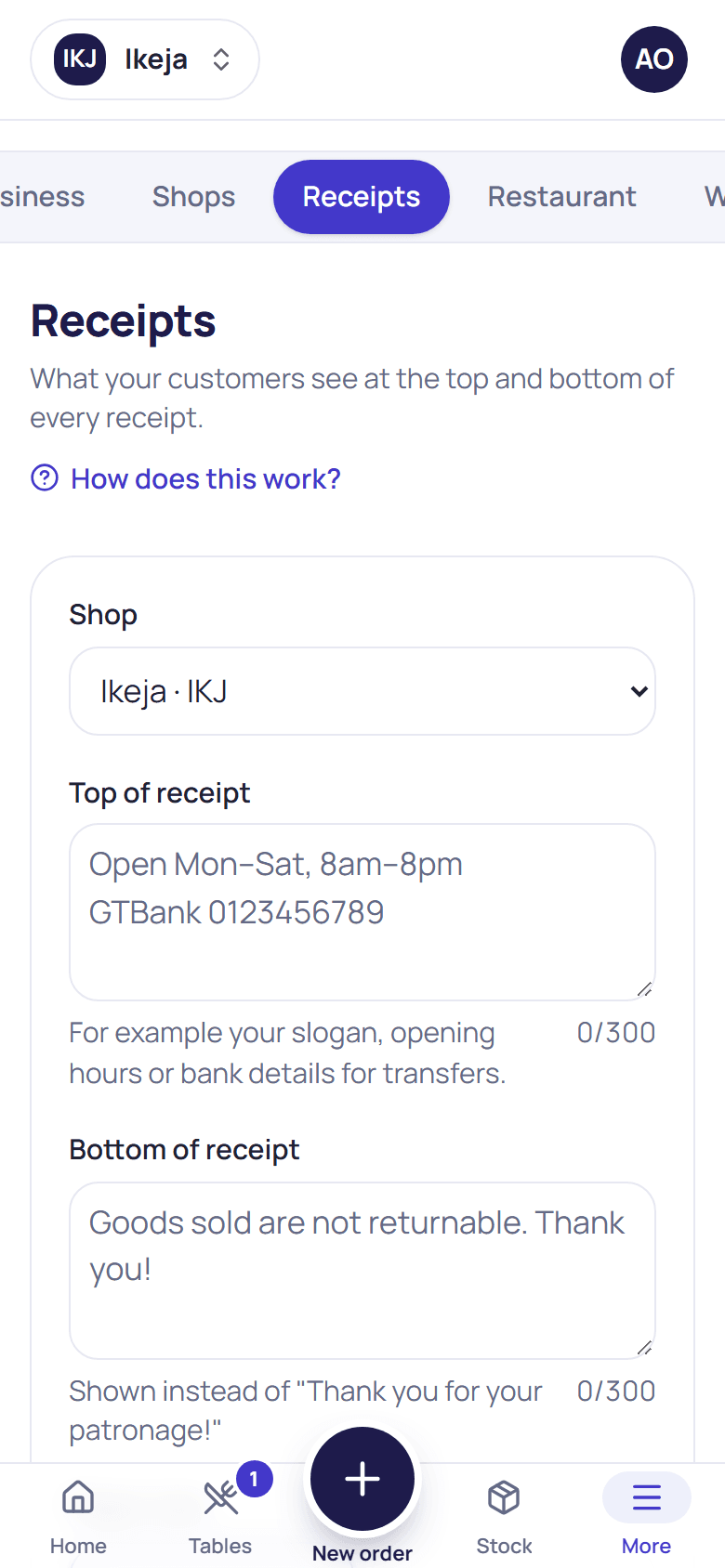
Go to Settings and tap the Receipts tab. If you have more than one shop, pick it under Shop. Each shop has its own receipt.
Tip:The shop's name, address and phone on the receipt come from Settings → Shops. The WhatsApp number comes from WhatsApp & bank.
Step 2: Write the top and bottom
In Top of receipt, add things like your slogan, opening hours or bank details for transfers (for example Open Mon–Sat, 8am–8pm). In Bottom of receipt, add your closing message (for example Goods sold are not returnable. Thank you!). Each can be up to 300 letters.
Step 3: Choose the paper size
Under Paper size, tap Receipt printer (80mm roll) or Normal printer (A4 paper).
Step 4: Check the preview and save
The Preview shows a sample receipt with your changes as you type. When it looks right, tap Save receipt settings.
Step 5: Print a test receipt
Tap Print a test receipt. Your phone or computer opens its print screen. Pick your printer and print. If the words are cut off, try the other paper size.
Tip:A small Bluetooth receipt printer usually needs its own app on the phone. Print the test first to be sure it works before customers arrive.