Selling
Print or WhatsApp a receipt
Give the customer a printed receipt or send it to their WhatsApp, right after the sale or any time later.
Step 1: Right after the sale
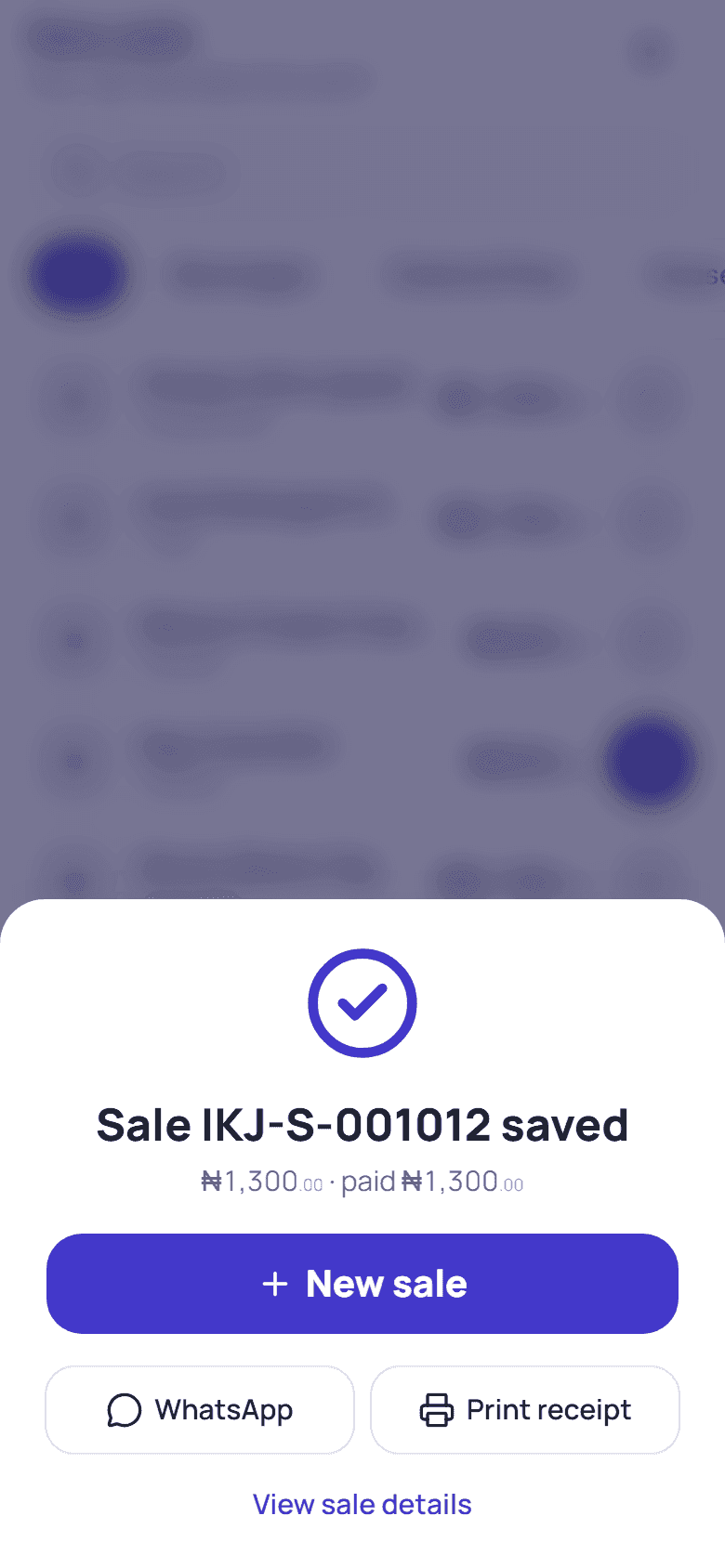
On the Sale … saved screen you have two buttons:
- WhatsApp opens WhatsApp with the receipt typed out, ready to send.
- Print receipt opens the receipt, ready to print.
Tip:If you typed the customer's phone during the sale, WhatsApp opens their chat directly. If not, WhatsApp asks who to send it to.
Step 2: For an older sale
Read: See your sales and cancel a saleOpen Sales (or My sales), tap the sale, then tap Receipt.
Step 3: Choose the paper size
At the top of the receipt, tap Small printer (80mm) for a small receipt printer, or A4 paper for a normal office printer.
Step 4: Print it
Tap Print. Your phone or computer shows its print screen: choose your printer and print.
Step 5: Or send it on WhatsApp
Tap Share on WhatsApp. WhatsApp opens on your phone with the receipt filled in. Press Send in WhatsApp.
Be careful:WhatsApp opens on the phone you are using, with your own WhatsApp account. ShopBook does not send anything by itself.
Step 6: Change what the receipt says
Read: Set up your receiptsOwners and managers can add a top and bottom message (like Thank you for your patronage!) and choose the usual paper size in Settings → Receipts.