Selling
See your sales and cancel a sale
Find any sale, see what was sold and who sold it, and cancel a sale that was a mistake.
Step 1: Open the Sales list
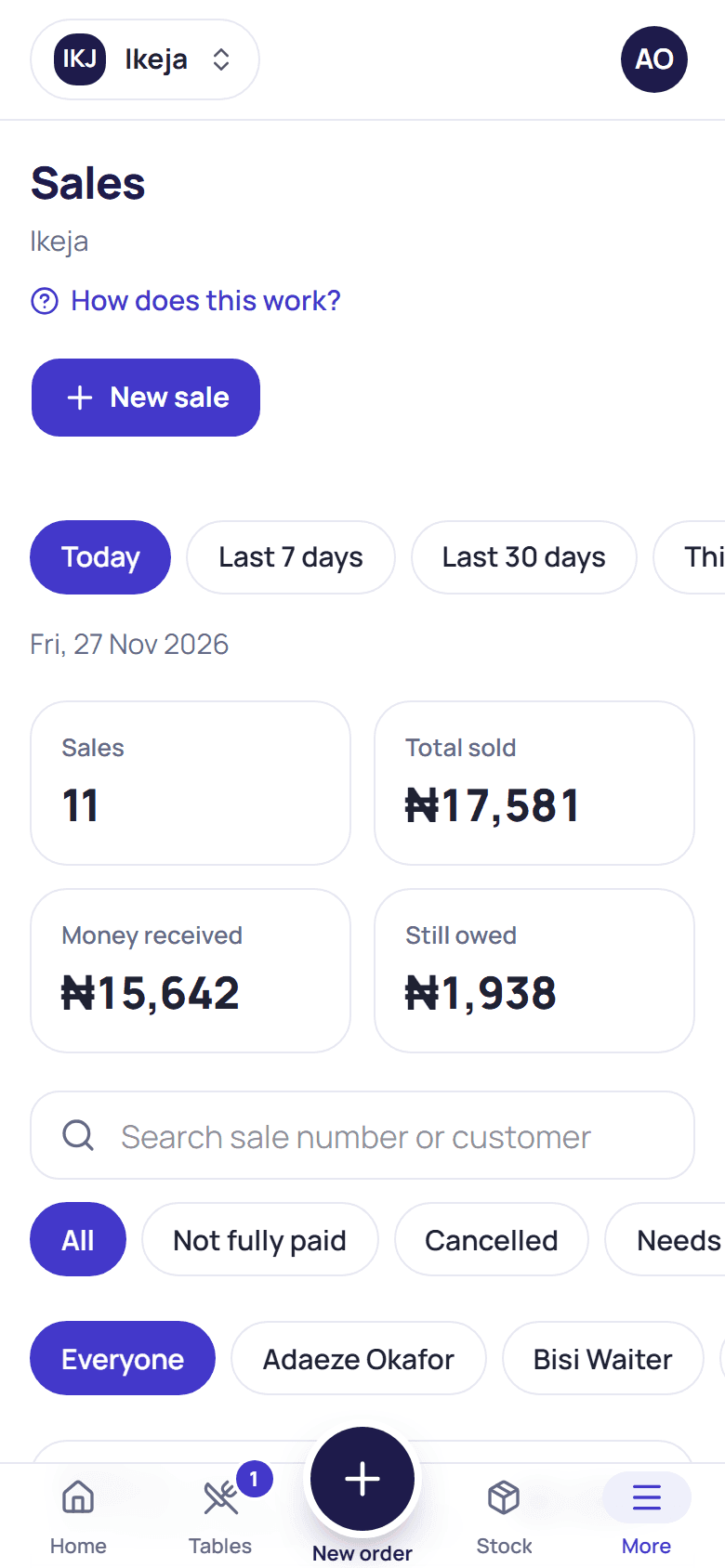
Tap Sales in the menu. Cashiers see My sales: only the sales they made themselves.
Step 2: Choose the period
The list starts on Today. Tap Last 7 days, Last 30 days, This month, Last month or Pick dates to look further back.
Step 3: Read the numbers at the top
- Sales: how many sales.
- Total sold: the value of those sales.
- Money received: what was actually paid.
- Still owed: what customers still have to pay.
Cancelled sales are not counted.
Step 4: Find one sale
Type a sale number (like IKB-S-000123), a customer's name or phone in Search sale number or customer. You can also tap a status: Not fully paid, Cancelled or Needs review. Owners and managers can tap a name under Sold by to see one person's sales.
Step 5: Open the sale
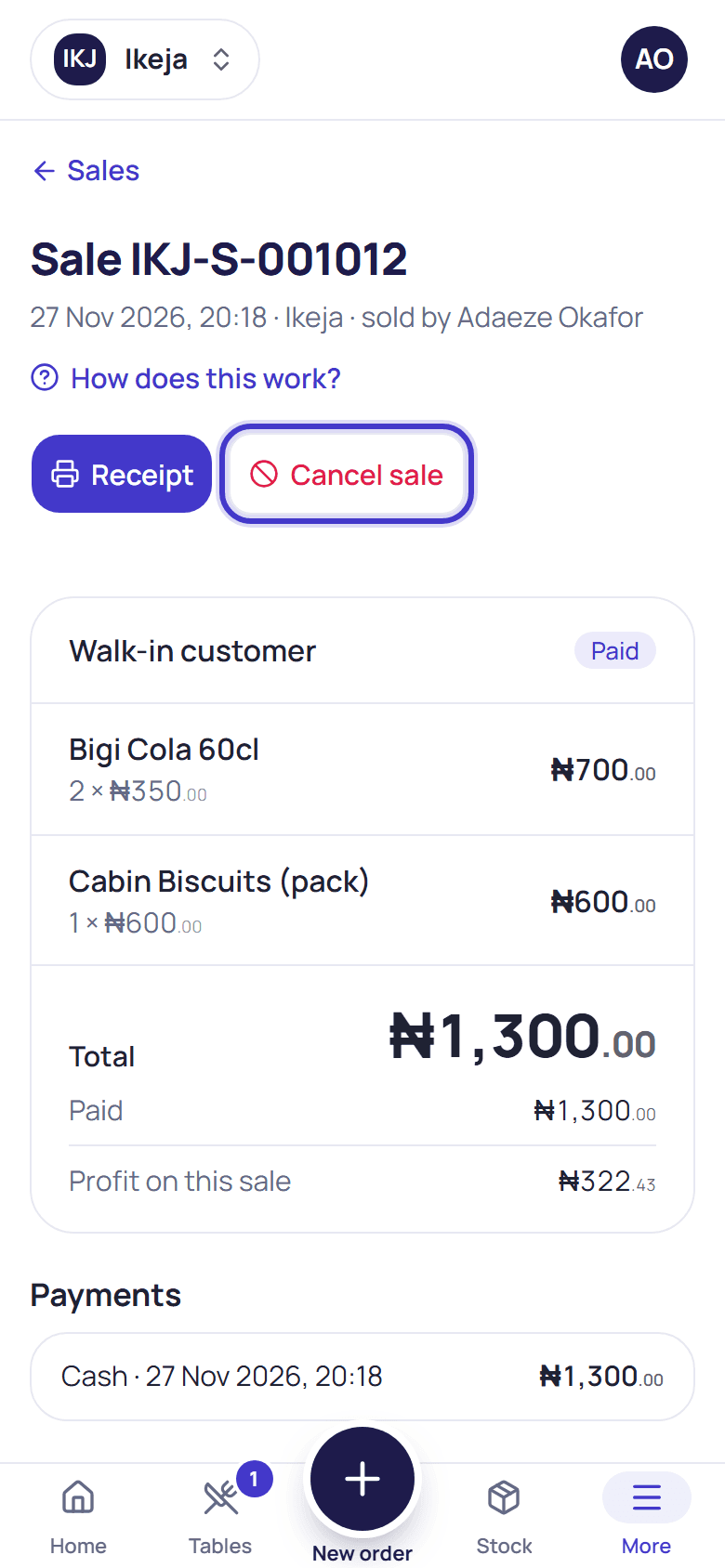
Read: Print or WhatsApp a receiptTap a sale to see every item, the total, how it was paid and who sold it. If you can see profit, you also see Profit on this sale. Tap Receipt to print or WhatsApp it, or Money owed if the customer still owes.
Step 6: Cancel a sale
Tap Cancel sale. Choose or type a Reason (for example Customer returned goods or Wrong items entered), then tap Cancel this sale.
Be careful:Only Owners, Admins and Managers can cancel a sale, and only after picking one shop (not All shops). A cancelled sale can't be brought back: if it was a mistake, make the sale again.
Step 7: What cancelling does
Read: See who changed what- The items go back into stock.
- Any money the customer owed on this sale is cleared.
- The sale stays in the list, crossed out, marked Cancelled, with the reason.
- Your name is saved with it in the activity log.