Selling
Make a sale
Find the products, check the basket, choose how the customer paid and give the right change.
Before you start
- Your products are added and have a selling price
- You have picked one shop at the top (not **All shops**)
Step 1: Open New sale
Tap New sale in the menu, or the big + button at the bottom of your phone. You can also tap New sale on the Home screen.
Step 2: Find the product
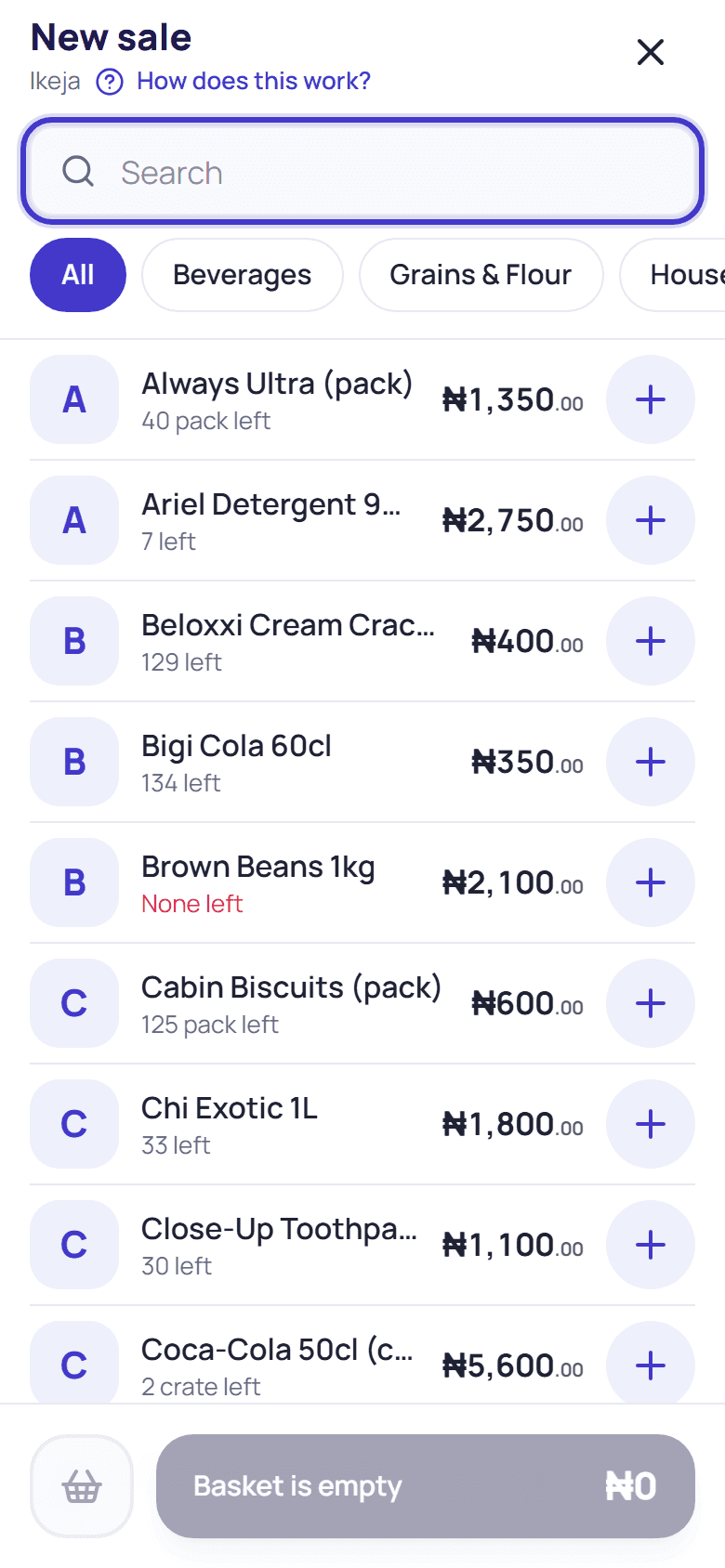
Type part of the name in the Search or scan box, for example peak milk. You can also tap a category (like Drinks) to see only those products. Each row shows the price and how many are left:
- 12 left: in stock.
- None left: the shelf count is zero.
- Made to order: food or drinks you don't count.
Step 3: Or scan the barcode
On an Android phone with Chrome, tap the barcode button next to the search box (it says Scan on bigger screens) and point the camera at the barcode. The product goes straight into the basket. A USB or Bluetooth barcode scanner also works: click in the search box and scan.
Tip:Don't see the Scan button? Your phone's browser can't read barcodes. Just type the name instead.
Step 4: Tap to add
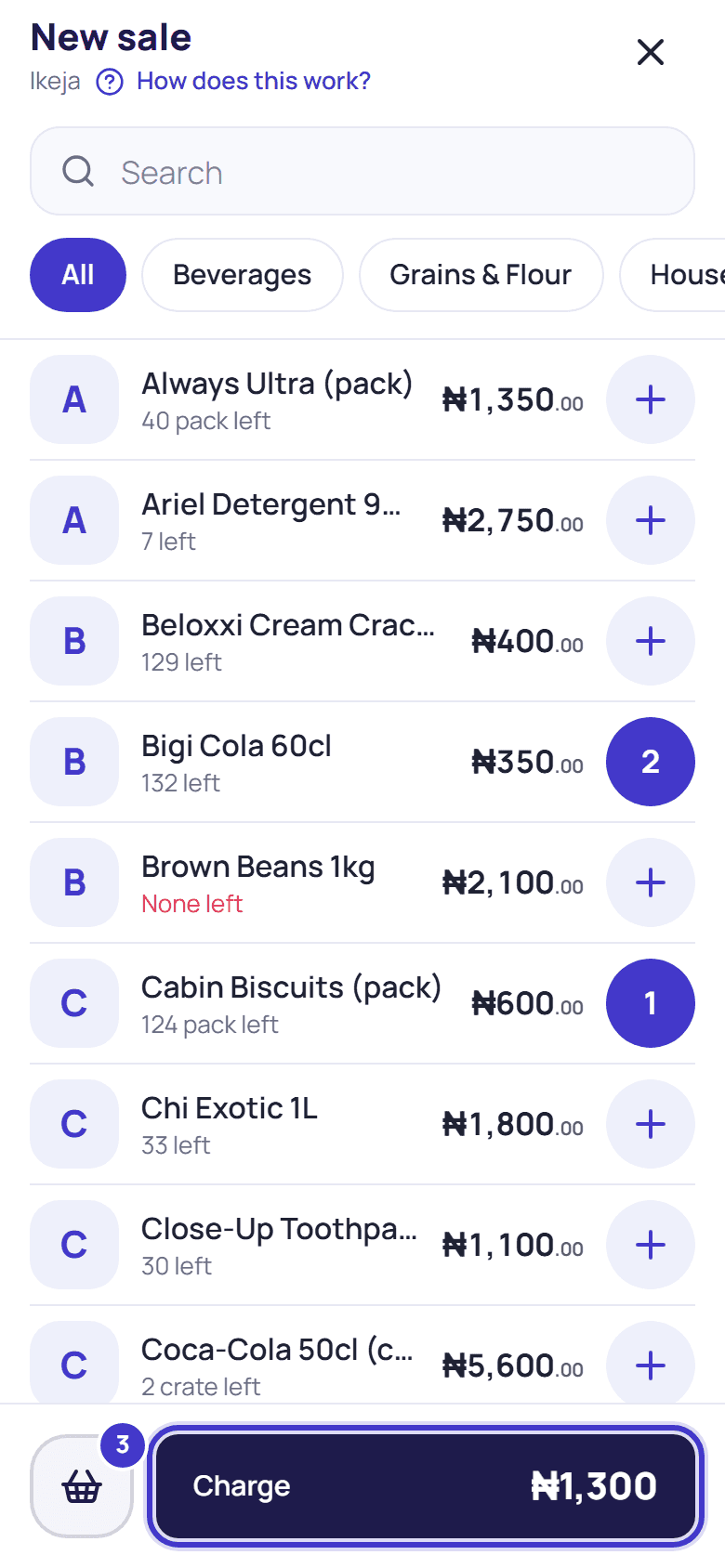
Tap a product once to add one. Tap it again to add another. The circle on the right shows how many are already in the basket.
Step 5: Check the basket
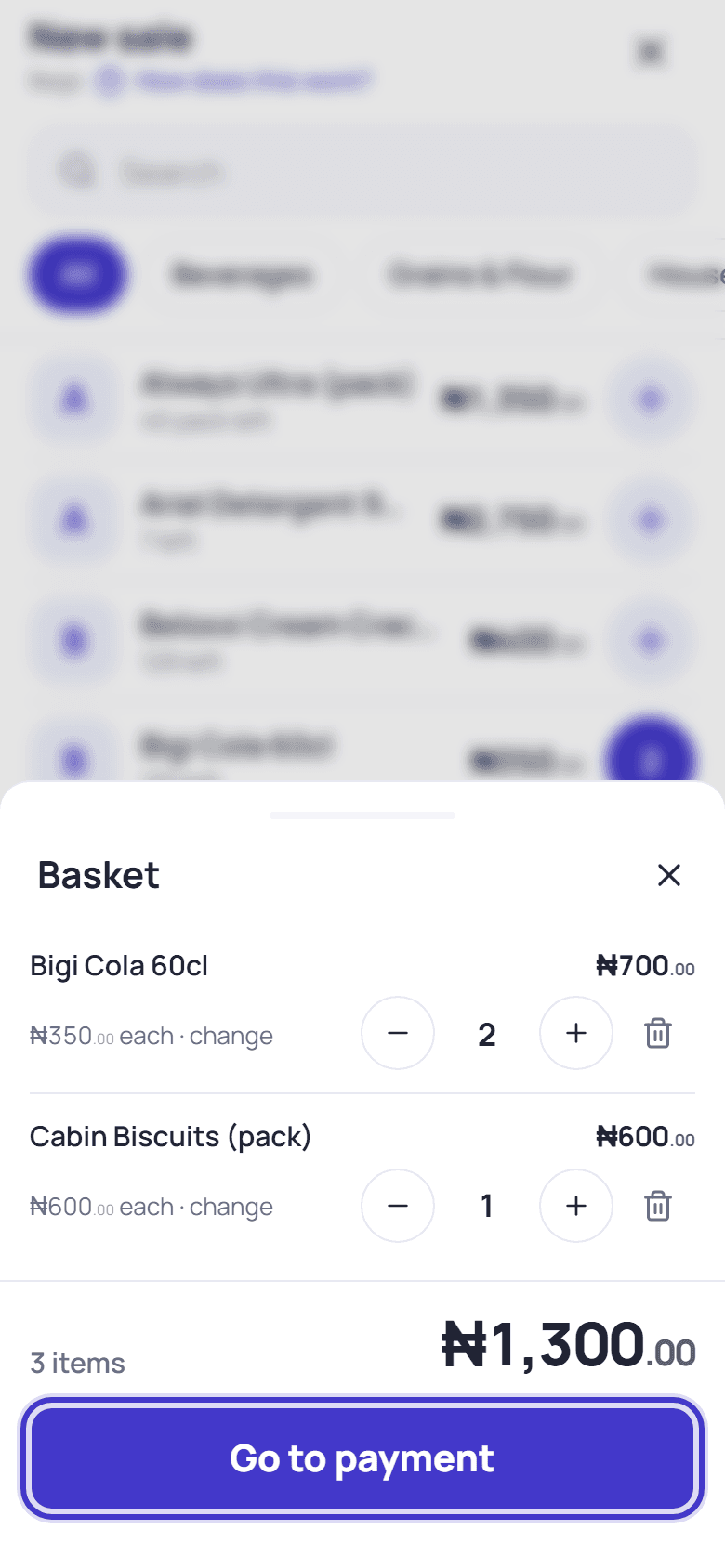
On a phone, tap the basket button at the bottom to see what you picked. On a computer the Basket is on the right. Use − and + to change how many, or the bin to remove an item. Then tap Go to payment (phone) or just carry on below the basket (computer).
Read: "Not enough … in stock"Be careful:If you see Only 3 in stock, you are selling more than the shelf count. ShopBook may stop the sale. Read: what to do when stock runs out.
Step 6: Choose how they paid
Tap Cash, Transfer or POS / Card. The big number above is the Total to collect.
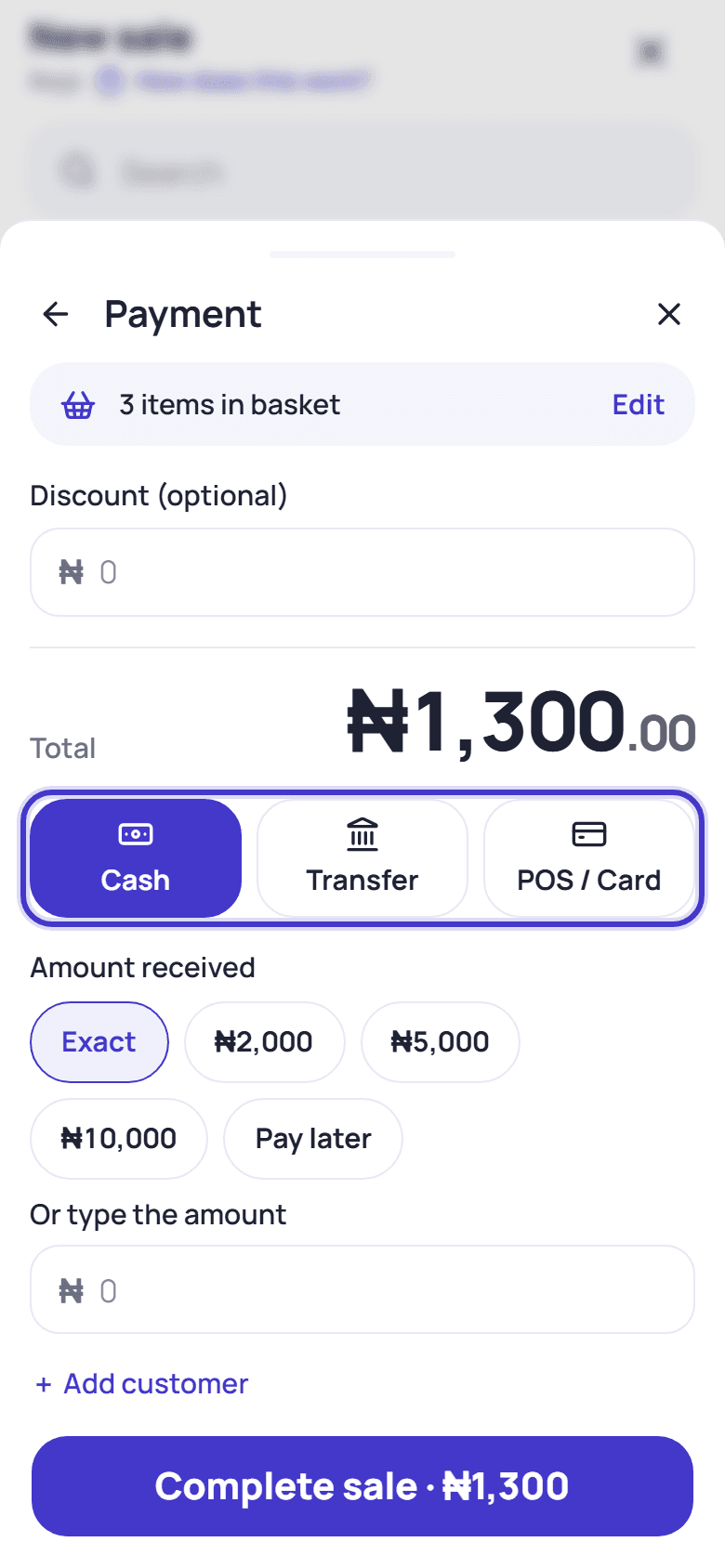
Step 7: Enter the money received
Under Amount received, tap Exact if they paid the exact amount. If they gave you a bigger note, tap the amount (for example ₦5,000) or type it in Or type the amount. ShopBook shows Give change: ₦X so you know exactly what to hand back.
Step 8: Finish the sale
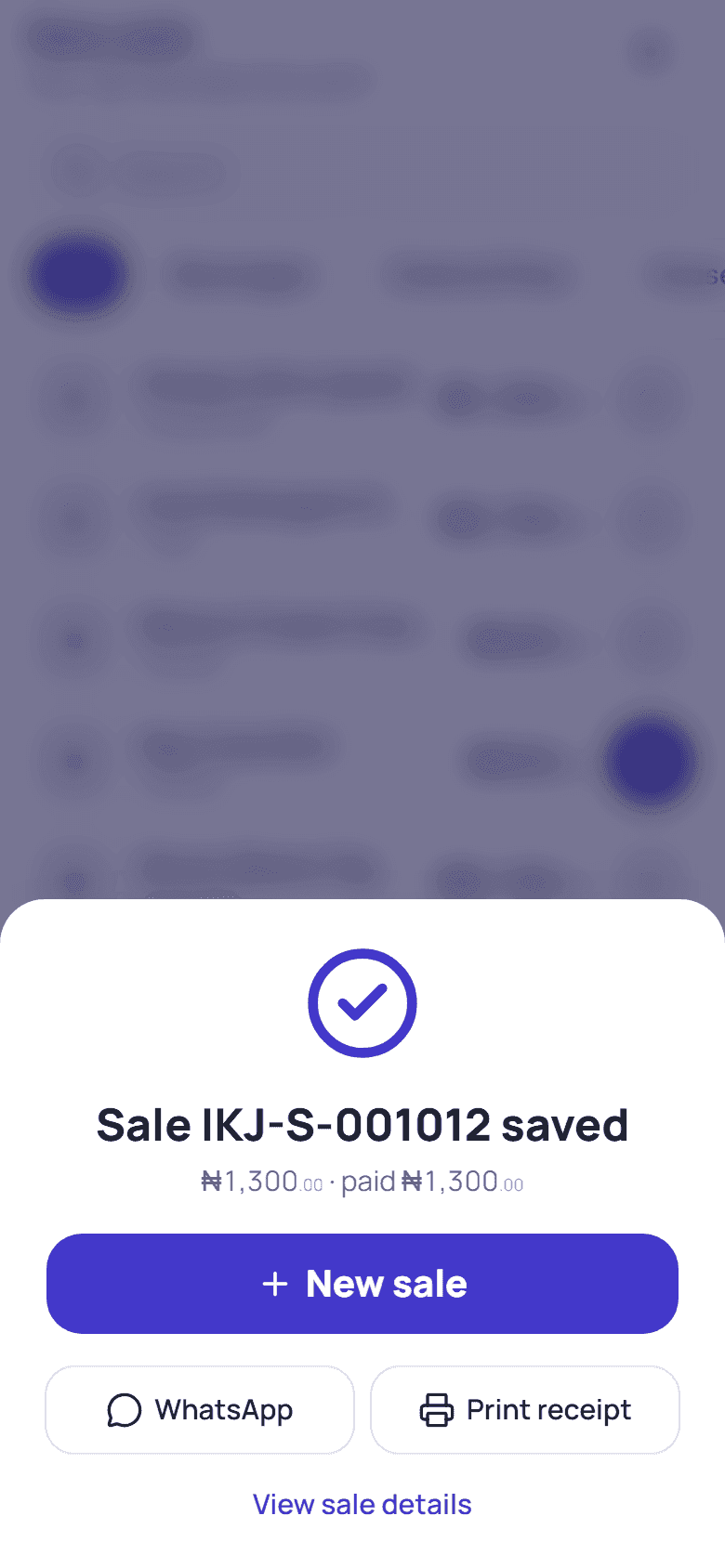
Tap the big button, for example Complete sale · ₦4,500. You see Sale IKB-S-000123 saved and the change to give. Tap New sale to serve the next customer.
Tip:Stock goes down by itself, and the sale shows on Sales and the Home screen at once.