Reports
What the Home screen numbers mean
Understand today's sales card, the 30-day boxes and the sales chart on your Home screen.
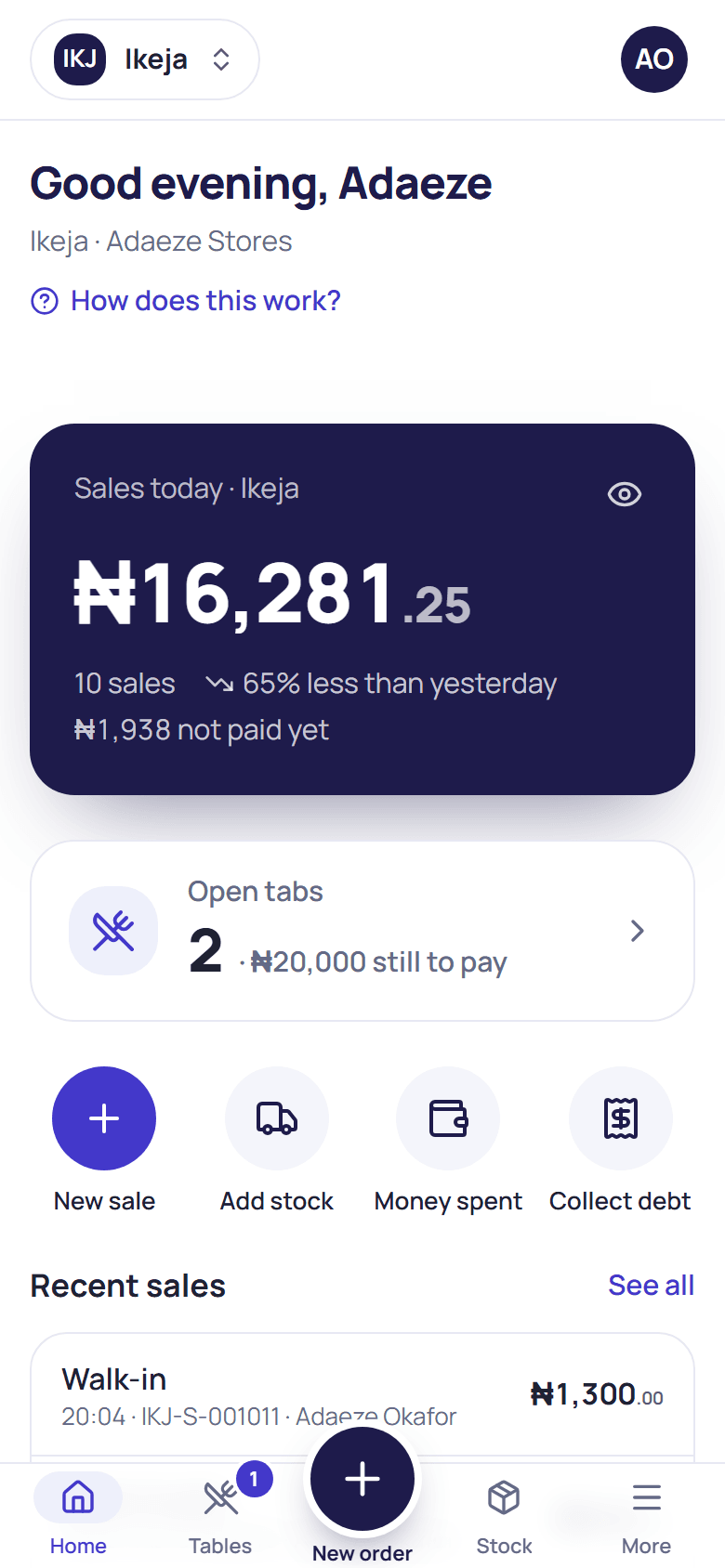
Step 1: The big card: today's sales
The dark card at the top shows the value of all sales made today. Under it:
- 12 sales: how many sales today.
- 15% more than yesterday (or less): compared with all of yesterday.
- ₦8,000 not paid yet: part of today's sales that customers still owe.
Cancelled sales are never counted.
Tip:Customers watching? Tap the eye button on the card to hide the amounts. This phone remembers your choice.
Step 2: Cashiers see their own sales
A cashier's card says Your sales today and counts only the sales they made. Owners, managers and viewers see Sales today for the whole shop.
Step 3: Quick buttons
Under the card you may see New sale, Add stock, Money spent and Collect debt. You only see the ones your job allows.
Step 4: Recent sales
Read: See your sales and cancel a saleThe latest sales of today, with the time, sale number and who sold it. Tap one to open it, or See all for the full Sales list.
Step 5: The Last 30 days boxes
Read: Low stock warningsOwners, admins, managers, accountants and viewers also see:
- Sales: the value of sales in the last 30 days.
- Profit: sales minus what the goods cost you and money spent. Only people who can see profit get this box.
- Money spent: business expenses recorded.
- Owed to you: everything customers owe right now (not only the last 30 days), and how much is overdue.
- Running low: products at or below their low-stock level.
Tap a box to open the full list behind it.
Step 6: Sales per day chart
Each bar is one day's sales. Tap 7 days or 30 days. Tap Show as table to see the exact amounts as a list.
Step 7: All shops
Read: Add another shop (branch)Owners, admins and accountants can tap the shop name at the top and pick All shops. Every number then adds up all your shops, and Sales by shop compares them side by side.