Products & stock
Low stock warnings
Set when ShopBook should warn you about a product, and where to see what needs restocking.
Step 1: Set the warning level
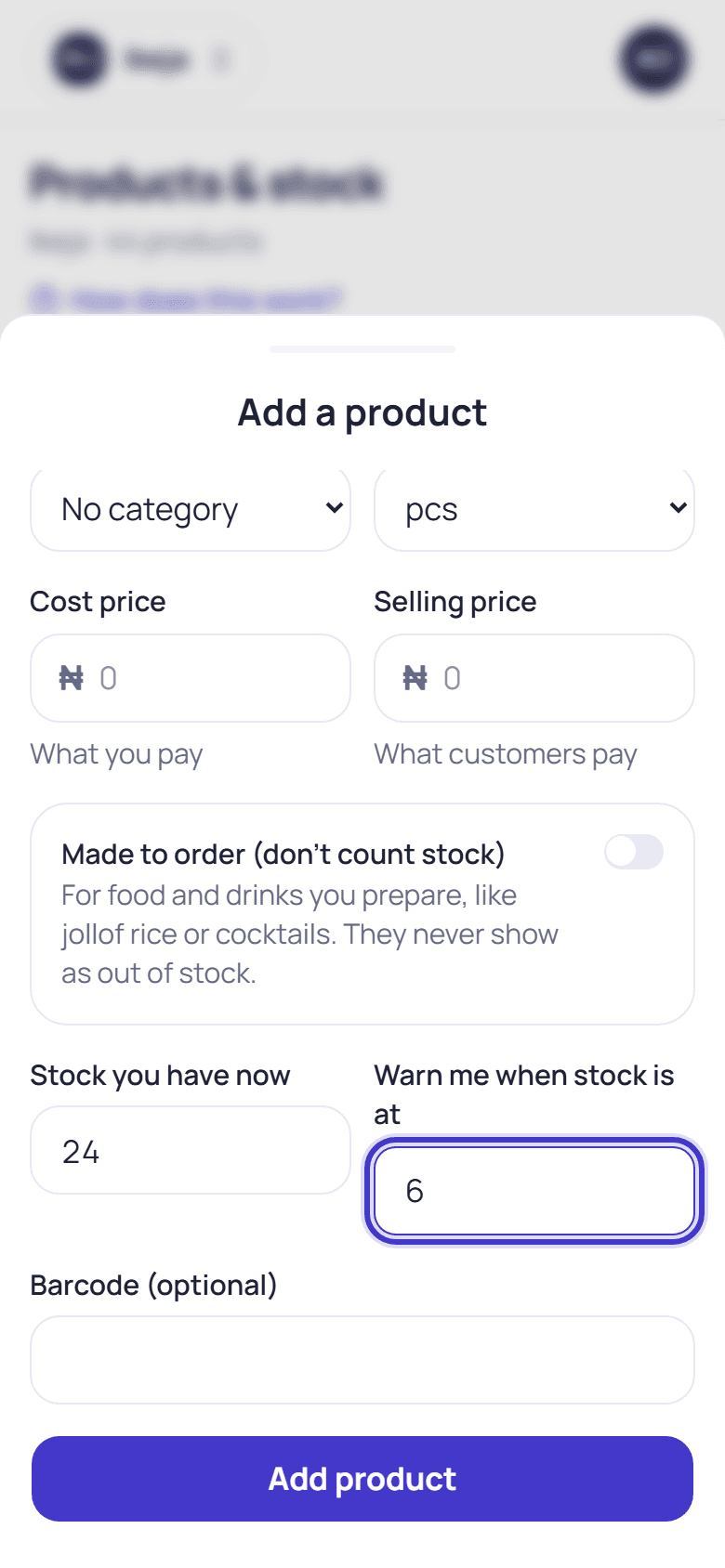
Open a product and tap Edit. In Warn me when stock is at, type the number that means "time to buy more", for example 6. Tap Save changes. New products start at 5.
Tip:Pick a number that lasts until your supplier can deliver. If you sell 10 a day and restock takes 2 days, use 20.
Step 2: Each shop has its own level
The warning level is kept per shop. A busy branch can warn at 20 while a small one warns at 5. Change it while you're looking at the shop it's for.
Step 3: On the Home screen
The Running low box on Home counts how many products have reached their warning level. Tap it to see the list.
Step 4: On Products & stock
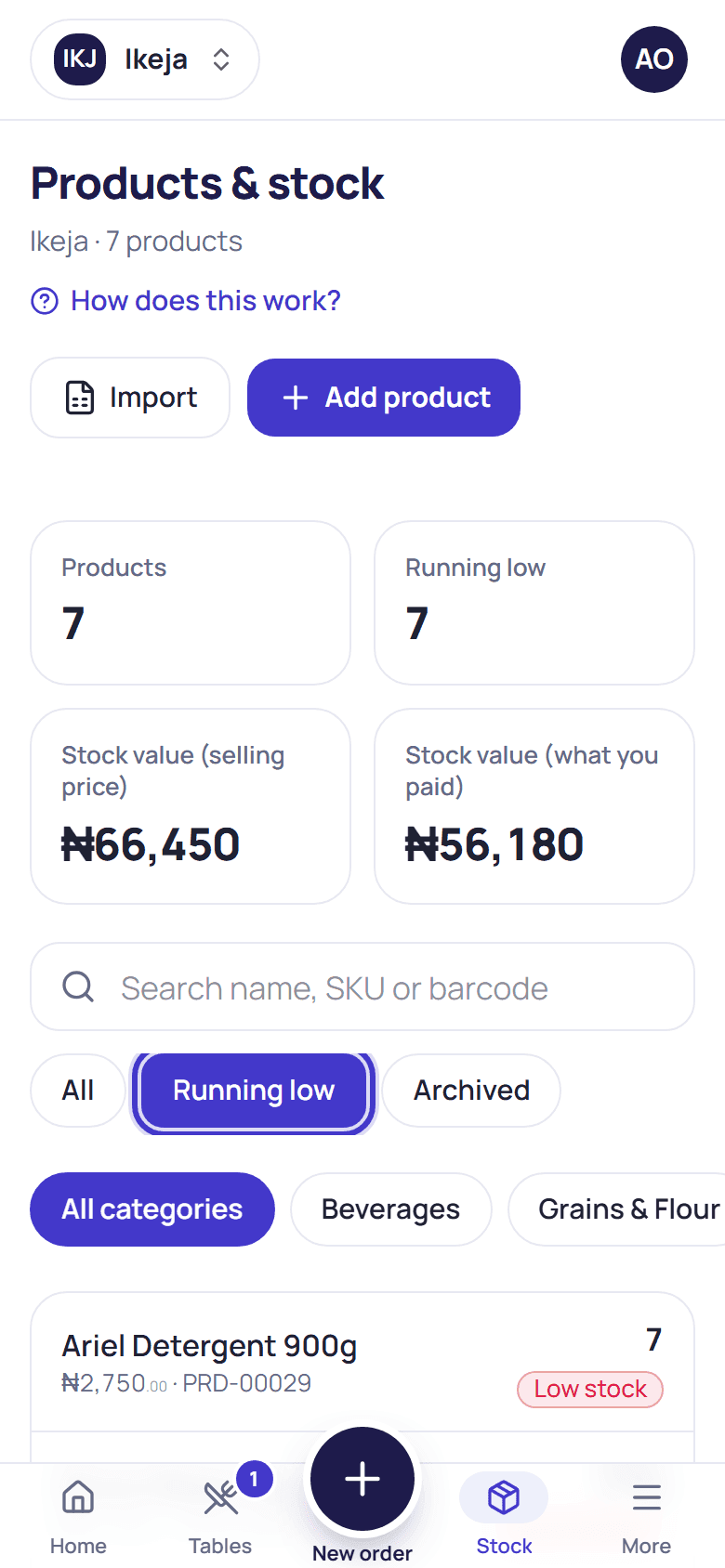
The Running low box at the top shows the same count. Tap the Running low filter to show only those products. Each one has a Low stock label, or Out of stock when none are left.
Step 5: Restock
Read: Record stock you boughtWhen the goods arrive, record them as stock bought. The warning goes away by itself once stock is above the level.