Products & stock
Correct a stock count
Fix the stock number when goods are damaged, expired, missing or found during a count.
Before you start
- Count what's really on the shelf
Step 1: Open the product
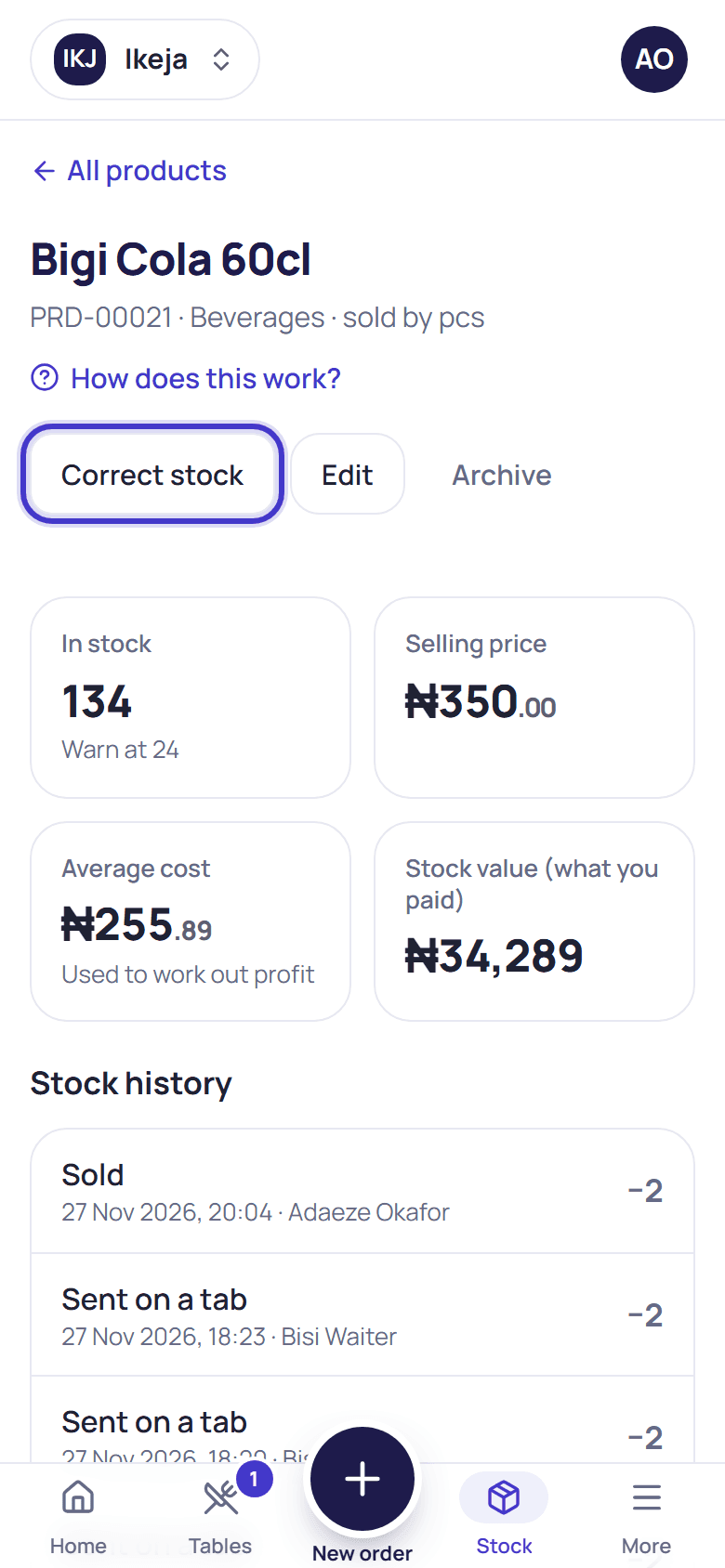
Go to Products & stock and tap the product. You'll see In stock and the Stock history below.
Tip:Made to order products don't count stock, so they have no Correct stock button.
Step 2: Tap Correct stock
Tap Correct stock. The box shows how many ShopBook thinks you have now.
Step 3: Add or remove
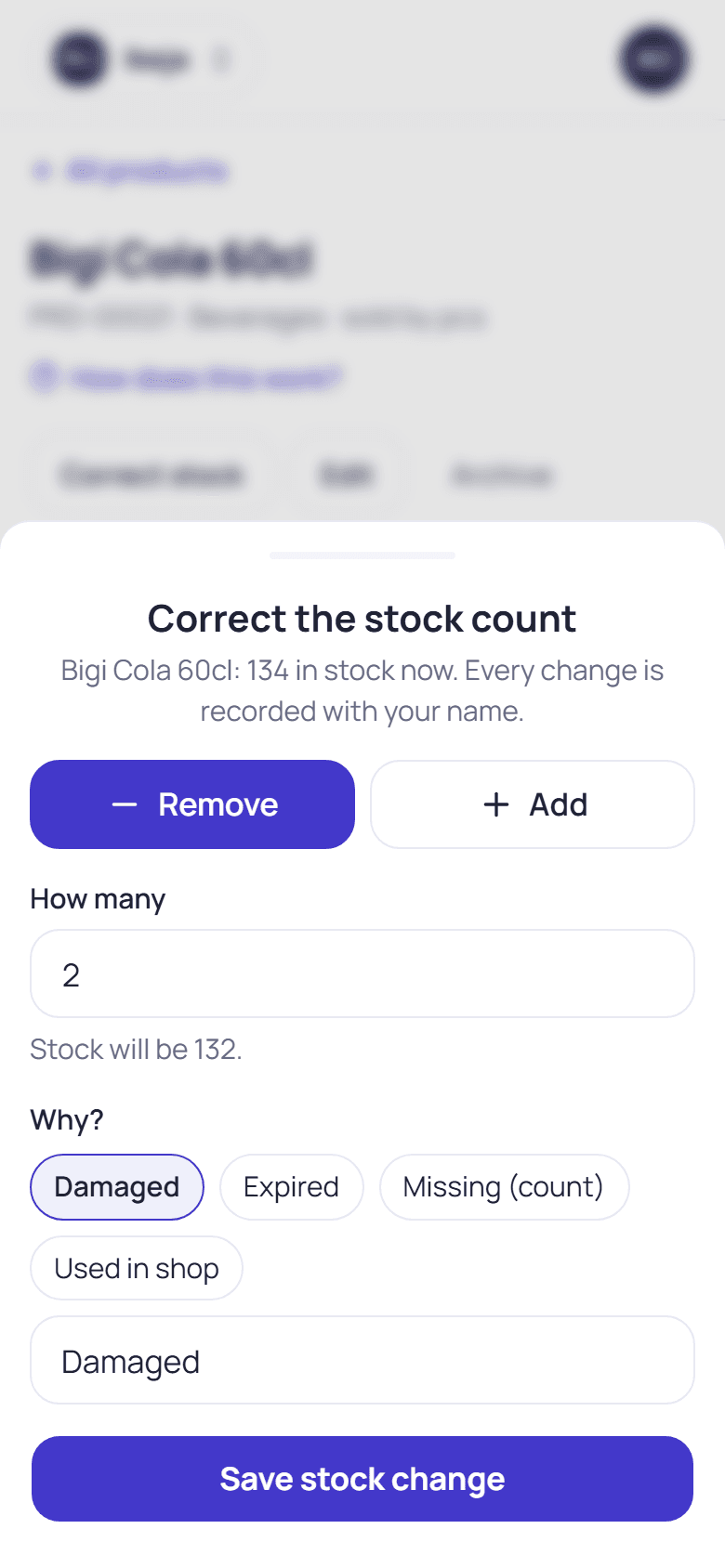
Tap Remove if you have fewer than ShopBook shows, or Add if you have more. Type the difference in How many, not the new total. ShopBook shows what the stock will be before you save.
Be careful:If ShopBook says 10 and you count 7, choose Remove and type 3.
Step 4: Say why
Under Why? tap a reason.
When removing:
- Damaged: broken, spoilt or torn.
- Expired: past its date.
- Missing (count): you counted and some are gone.
- Used in shop: taken for use in the shop, not sold.
When adding:
- Found during count: more on the shelf than recorded.
- Returned by customer: a customer brought it back.
- Correction: fixing an earlier mistake.
Or type your own reason in Or type the reason.
Step 5: Save
Tap Save stock change. The change appears in Stock history as Stock corrected, with your name and the reason.
Be careful:You can't remove more than you have. Stock can't go below zero this way.