Reports
Your reports at a glance
Which reports ShopBook has, what each one answers, and who can see it.
Step 1: Open Reports
Tap Reports in the menu. You see one card per report. Cashiers, attendants and kitchen staff don't have Reports.
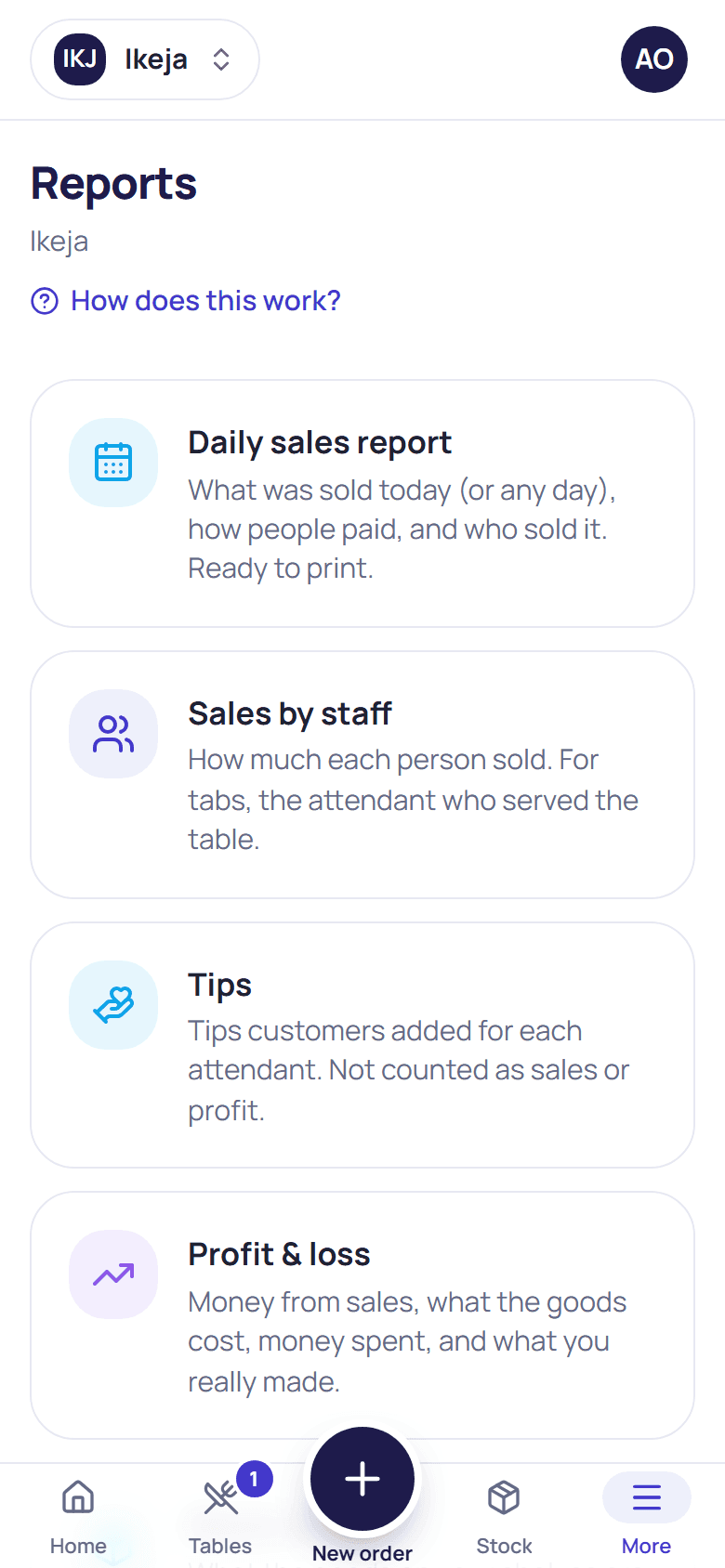
Step 2: The reports
- Daily sales report: everything sold on one day, how people paid, who sold it.
- Sales by staff and Tips: how much each person sold, and tips they got.
- Profit & loss: what you really made after all costs.
- Stock value: what the goods on your shelves are worth.
- Money owed to you: who owes, and for how long.
- Download your data: Excel or CSV files of your records.
Step 3: Who sees what
Read: I can't see profit or cost pricesEveryone with Reports sees the daily report, staff report and money owed. Profit & loss and Stock value need permission to see cost and profit: owners, admins, managers, accountants and viewers have it. Download your data is only for owners, admins and accountants.
Step 4: Choose the period
Most reports start on Last 30 days. Tap Today, Last 7 days, This month, Last month or Pick dates to change it.
Step 5: One shop or all shops
Reports show the shop chosen at the top. Owners, admins and accountants can pick All shops to see every shop added together.
Step 6: Print a report
Tap Print at the top of any report. It prints neatly on A4 paper, or you can save it as a PDF from the print screen.