Restaurant & lounge
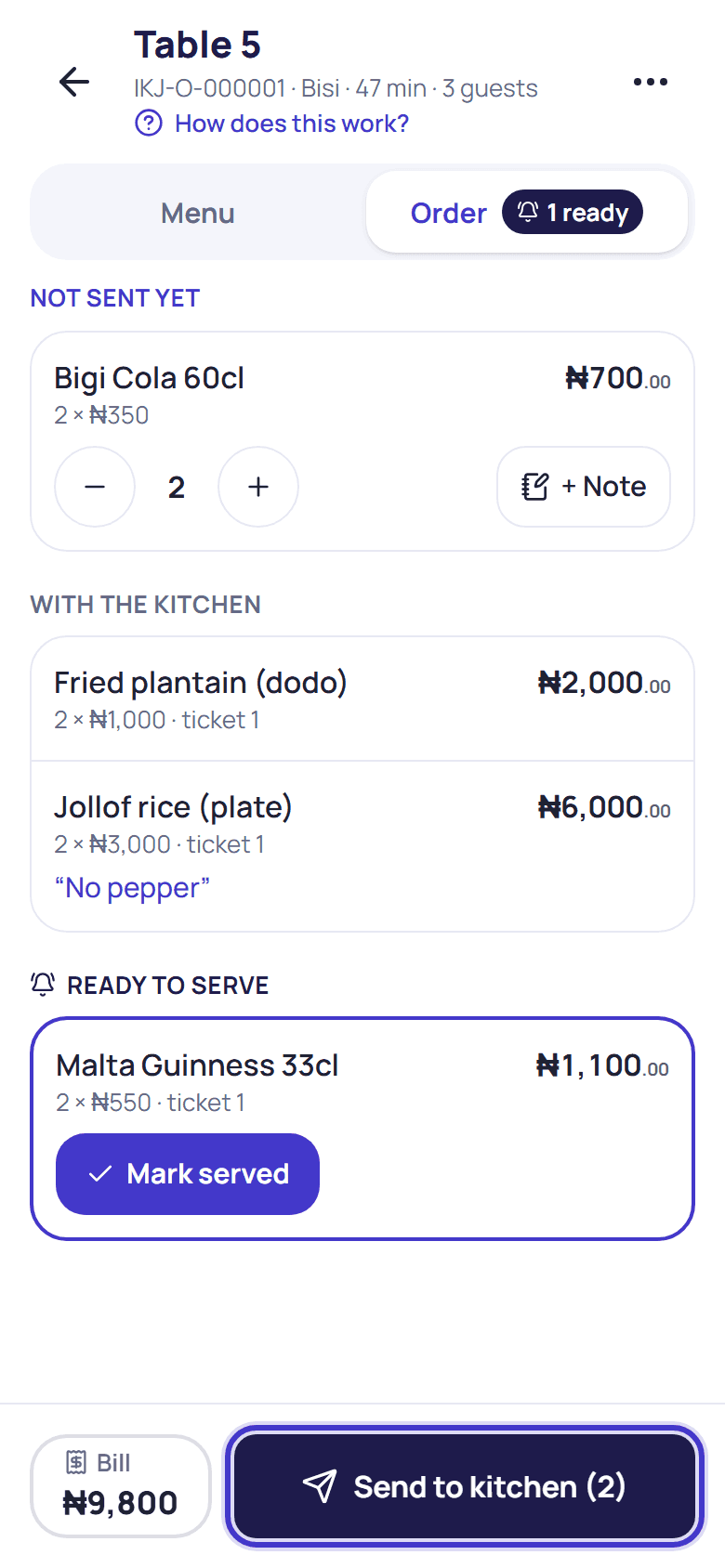
Take an order at a table
Open a tab for a table (or a takeaway) and add food and drinks to it.
Before you start
- Your phone is connected to the internet
Step 1: Read the Tables screen
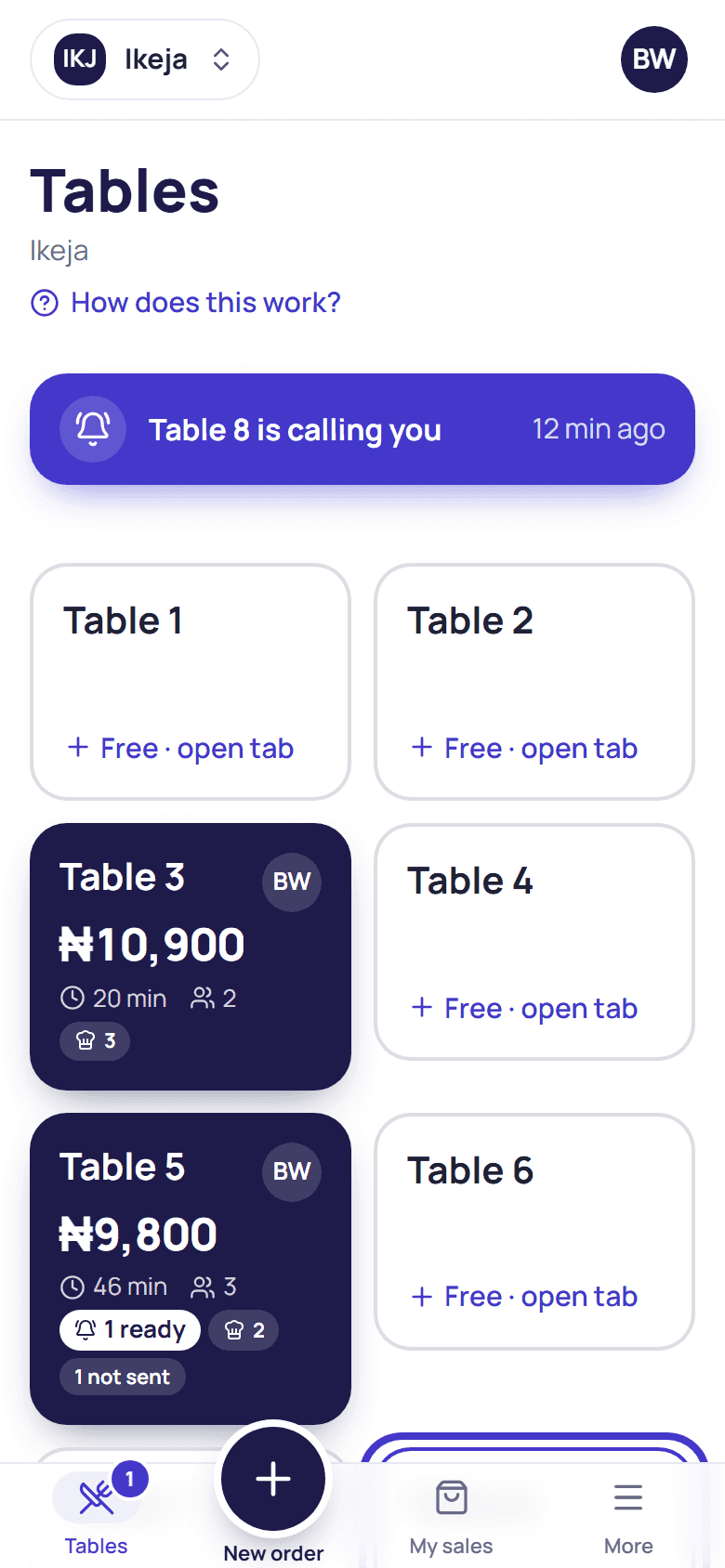
Every table is a big tile:
- White with Free · open tab: nobody is sitting there.
- Indigo with an amount: it has an open tab. The amount is what's still to pay.
- Busy with a name: another waiter's table.
Tip:Managers and cashiers can tap All tabs or Mine at the top. If you have areas, tap one (like Garden) to see only those tables, or Every area to see them all.
Step 2: Open a tab for a table
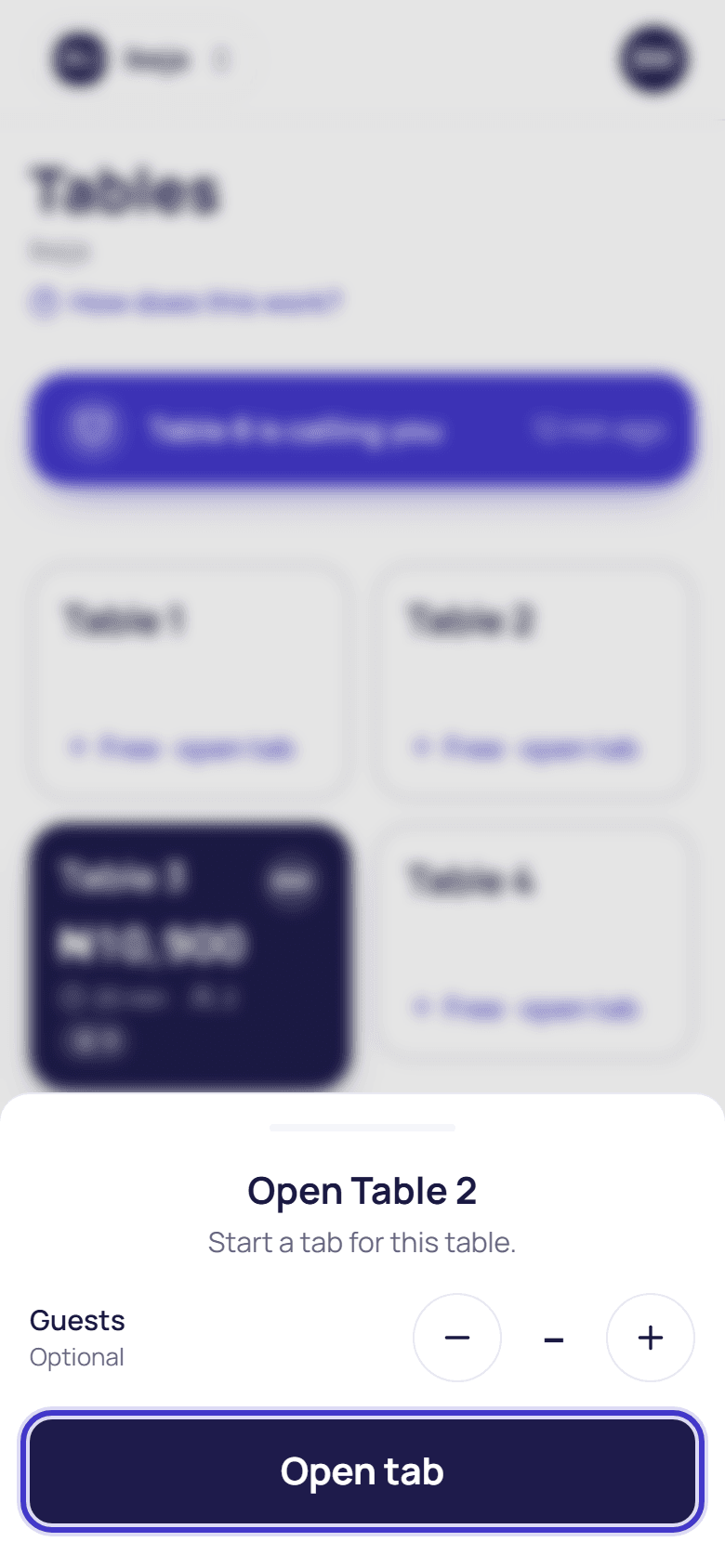
Tap a free table. Add the number of Guests if you like (it's optional), then tap Open tab.
Tip:If someone else opened the same table a moment before you, ShopBook says This table already had a tab. Opening it. You both use the same tab.
Step 3: No table? Type a name
Tap Name or takeaway (or New order, or the + button on a phone). Choose one of the Free tables, or type a name under Or a name, like Takeaway or Mr. Tunde. Tap Open tab.
Step 4: Add food and drinks
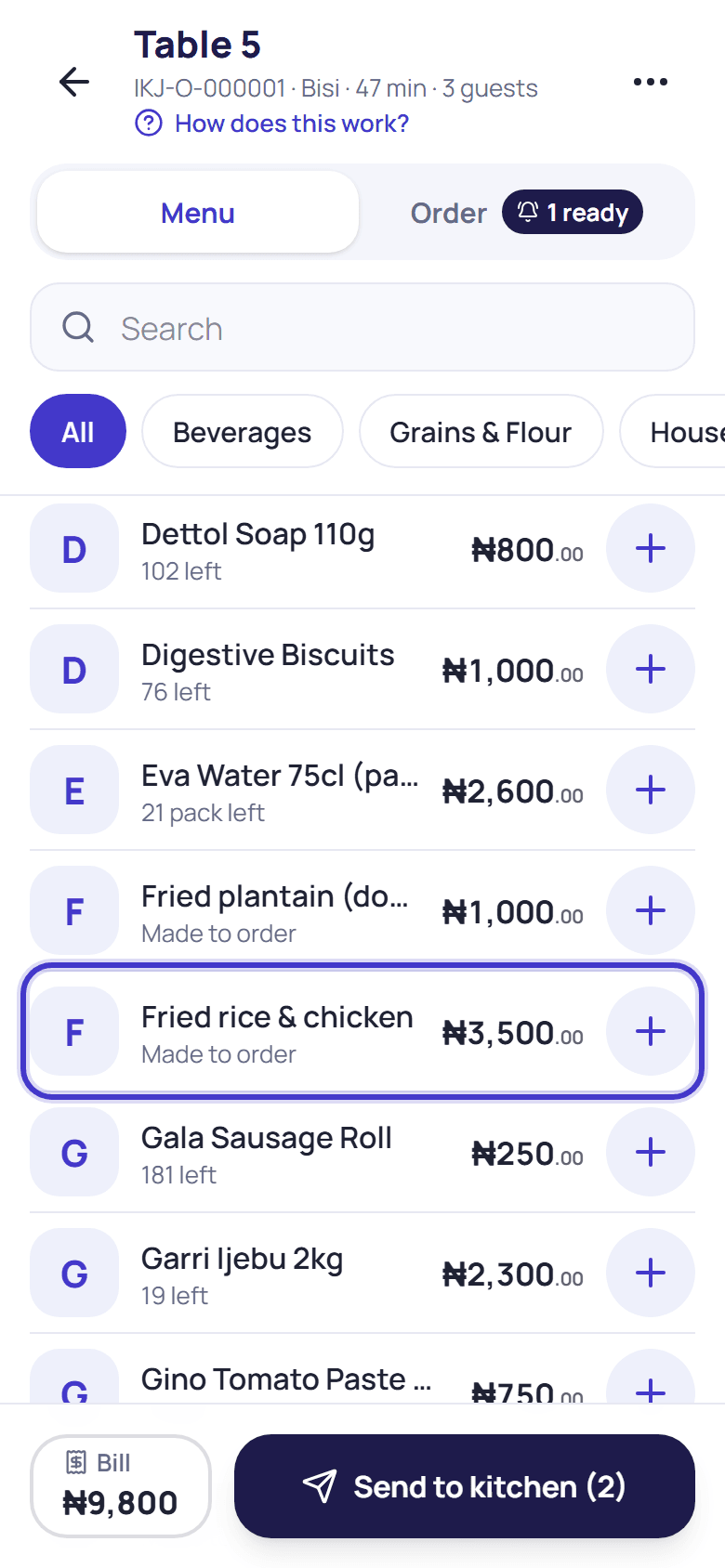
The tab opens on the menu. Tap an item to add one. Tap again to add another. On a phone, switch between Menu and Order at the top to see what you've added.
Tip:Items marked Made to order never run out. Counted items show how many are left.
Step 5: Change the order before sending
In the Order list, items you just added are under Not sent yet. Use + and − to change how many. When only one is left, the − turns into a bin. Tap it to remove the item.
Step 6: Send it
Read: Send an order to the kitchenNothing reaches the kitchen until you send it. Add any notes, then send.