Restaurant & lounge
Move, join or cancel a tab
Move a tab to another table, join two tabs into one bill, cancel a tab or cancel one item.
Step 1: Open the tab options
On the tab, tap the ⋯ button at the top right. You see Tab options.
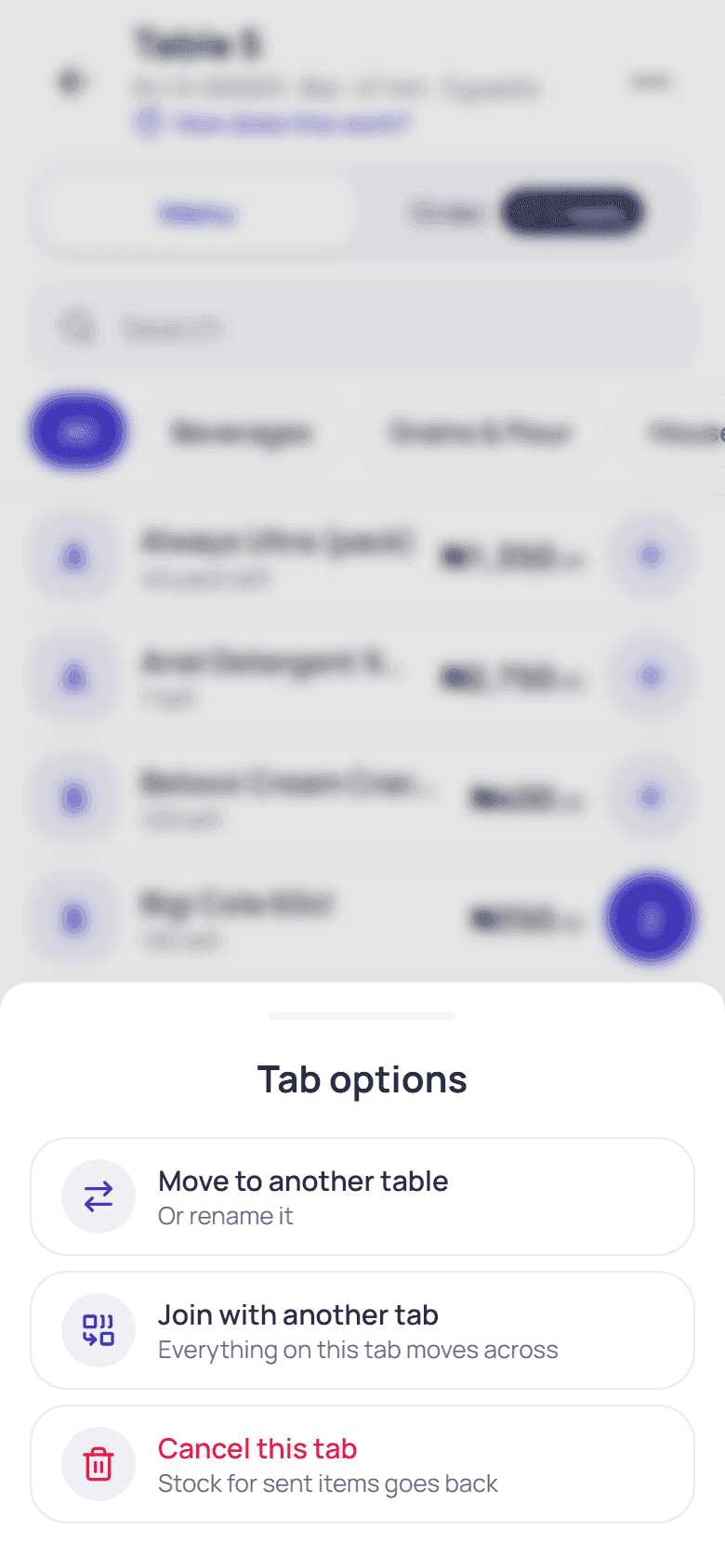
Step 2: Move to another table
Tap Move to another table. Choose a free table, or type a new name under Or a name. Tap Move tab.
Step 3: Join two tabs
Friends at two tables want one bill? Open one of the tabs and tap Join with another tab. Tap the other tab. They join straight away: everything moves across to it, and this tab closes.
Step 4: Cancel the whole tab
Tap Cancel this tab, then Cancel tab. If items were already sent, type Why? first. Stock for sent items goes back.
Be careful:A waiter can cancel a tab only if nothing was sent yet. Once items were sent, a manager must do it. A tab that is partly paid can't be cancelled.
Step 5: Cancel one item that was already sent
In the Order list, tap Cancel item under the item. Tap a reason like Customer changed mind or Wrong item, or type one under Why?. Tap the red button, like Cancel 1 × Jollof rice. The kitchen screen shows it as cancelled, and any stock comes back.
Tip:An item that wasn't sent yet doesn't need a manager. Tap − until it's removed.
Step 6: Everything is recorded
Read: See who changed whatMoves, joins and cancellations are saved in the activity log with the name of the person who did it.