Restaurant & lounge
Put QR codes on your tables
Print a QR code for each table so guests can see your menu and call a waiter from their phone.
Before you start
- Your tables are added
- A printer with A4 paper
Step 1: Open the QR codes
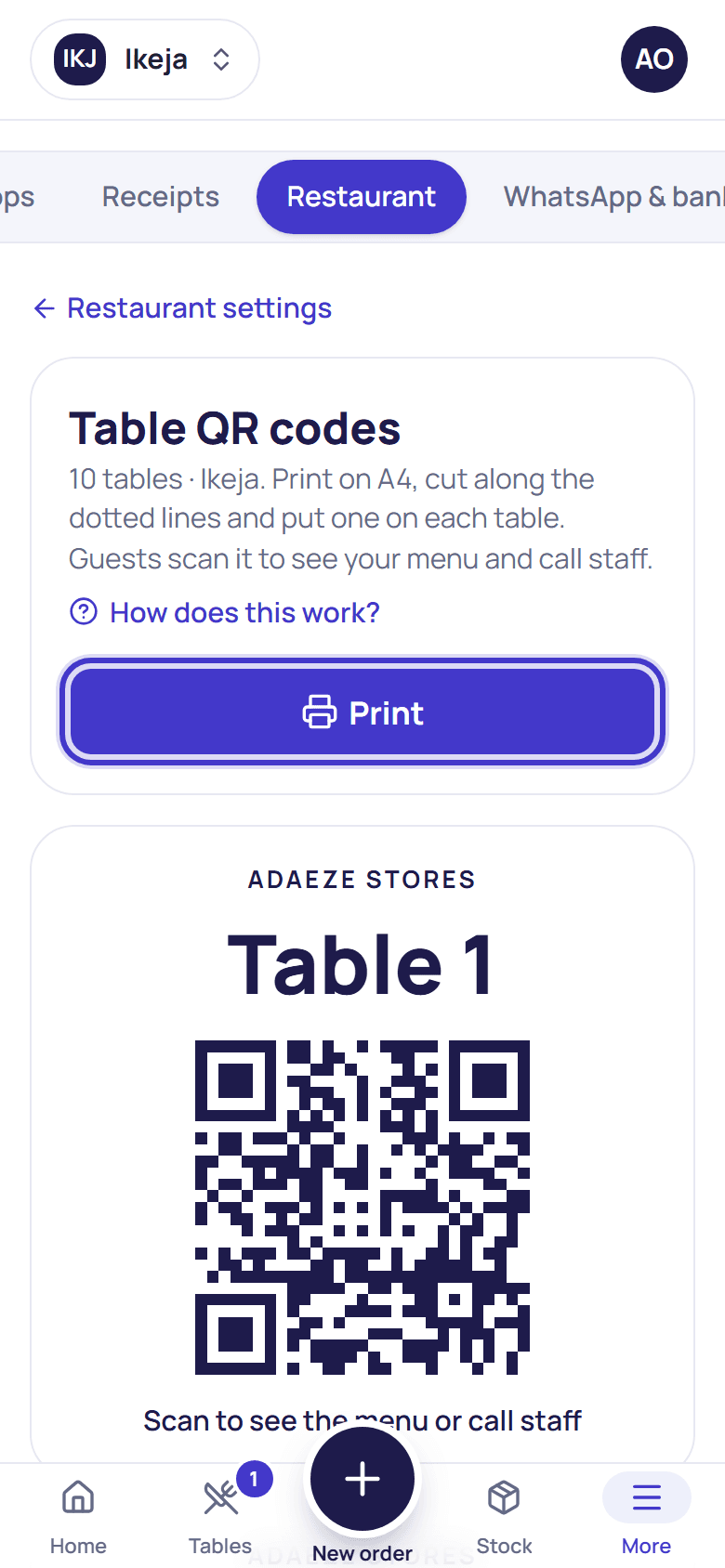
In Tables & settings (or Settings → Restaurant), tap Print QR codes next to your tables.
Step 2: Print and cut
Tap Print. There are 6 cards on each A4 page, each with your business name and the table's name. Cut along the dotted lines and put one card on each table.
Be careful:Every table has its own code. Don't swap cards between tables, or calls will come from the wrong table.
Step 3: What guests see
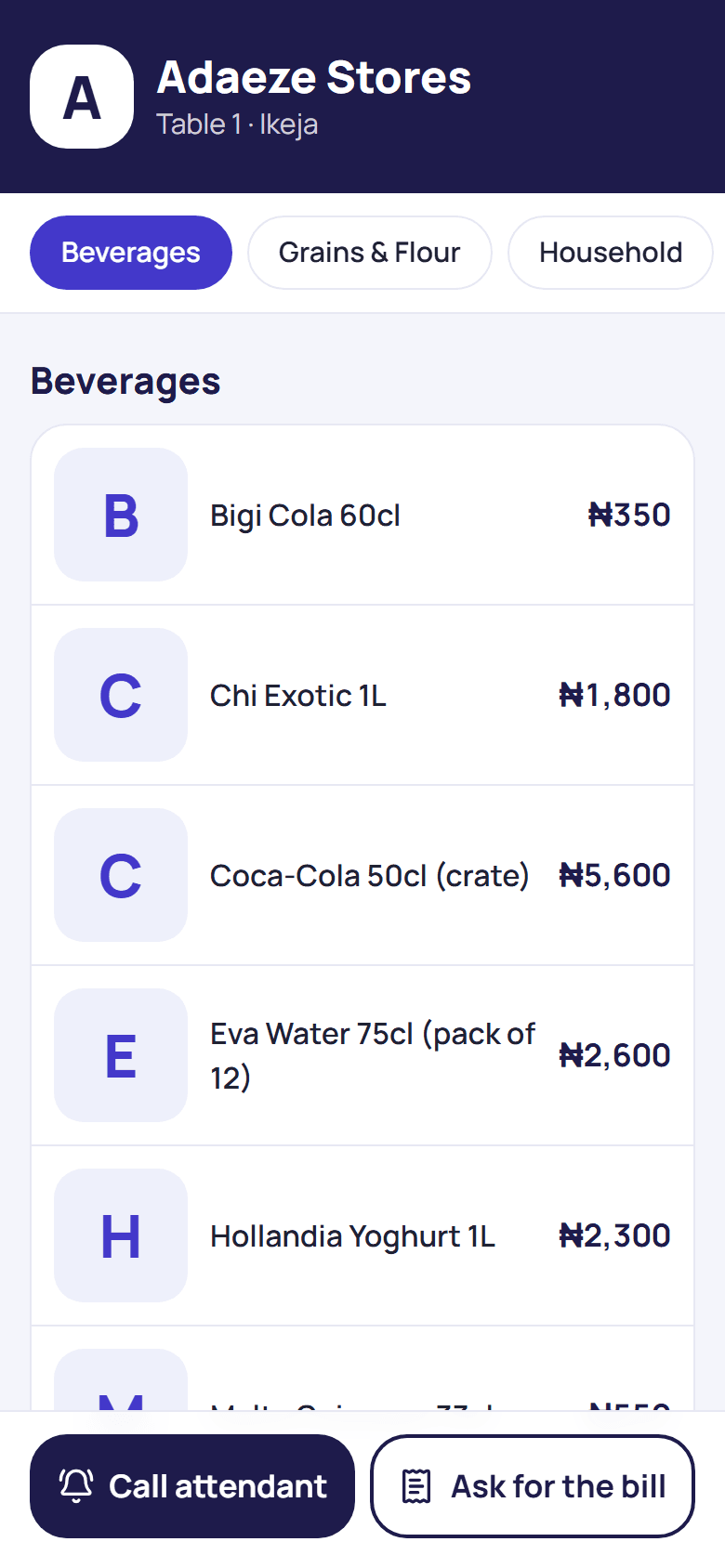
Guests scan the code with their phone camera. No app is needed. They see your menu by category, with prices and photos. Counted items that are out of stock are hidden.
Tip:Guests can't order or pay from the menu. A waiter still takes the order.
Step 4: Guests can call you
Read: Answer a guest's callAt the bottom of the menu, guests can tap:
- Call attendant: a waiter is needed at the table.
- Ask for the bill: the table is ready to pay.
Their phone shows Staff told, and your Tables screen lights up.
Step 5: New tables need new cards
When you add a table, print its card. Renaming a table keeps the same code. Removing a table stops its code working.