Restaurant & lounge
Send an order to the kitchen
Add notes like "No pepper" and send new items to the kitchen and bar screens.
Step 1: Add a note (optional)
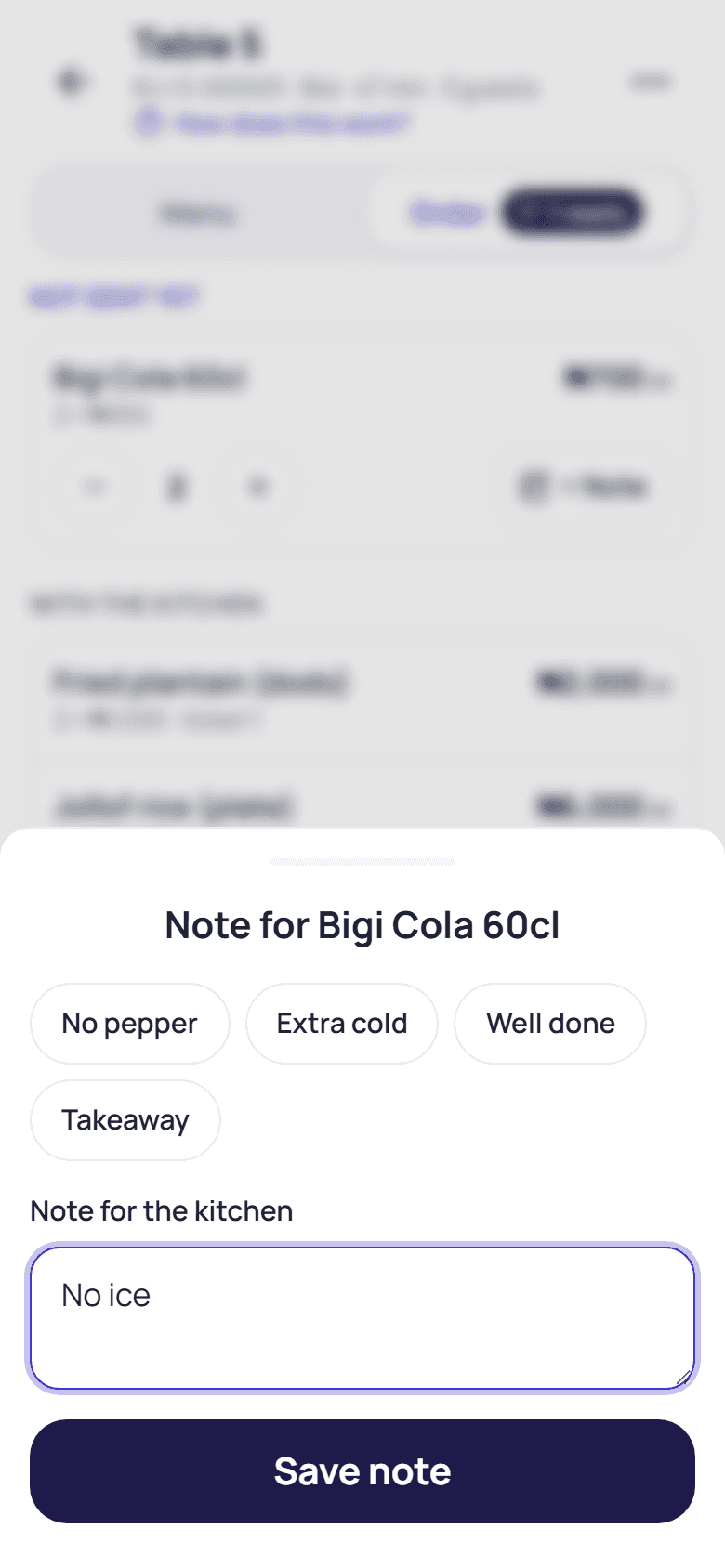
Next to an item under Not sent yet, tap + Note. Tap a quick note like No pepper, or type your own under Note for the kitchen. Tap Save note.
Tip:To change a note, tap Edit note. To take it off, tap Remove note.
Step 2: Send
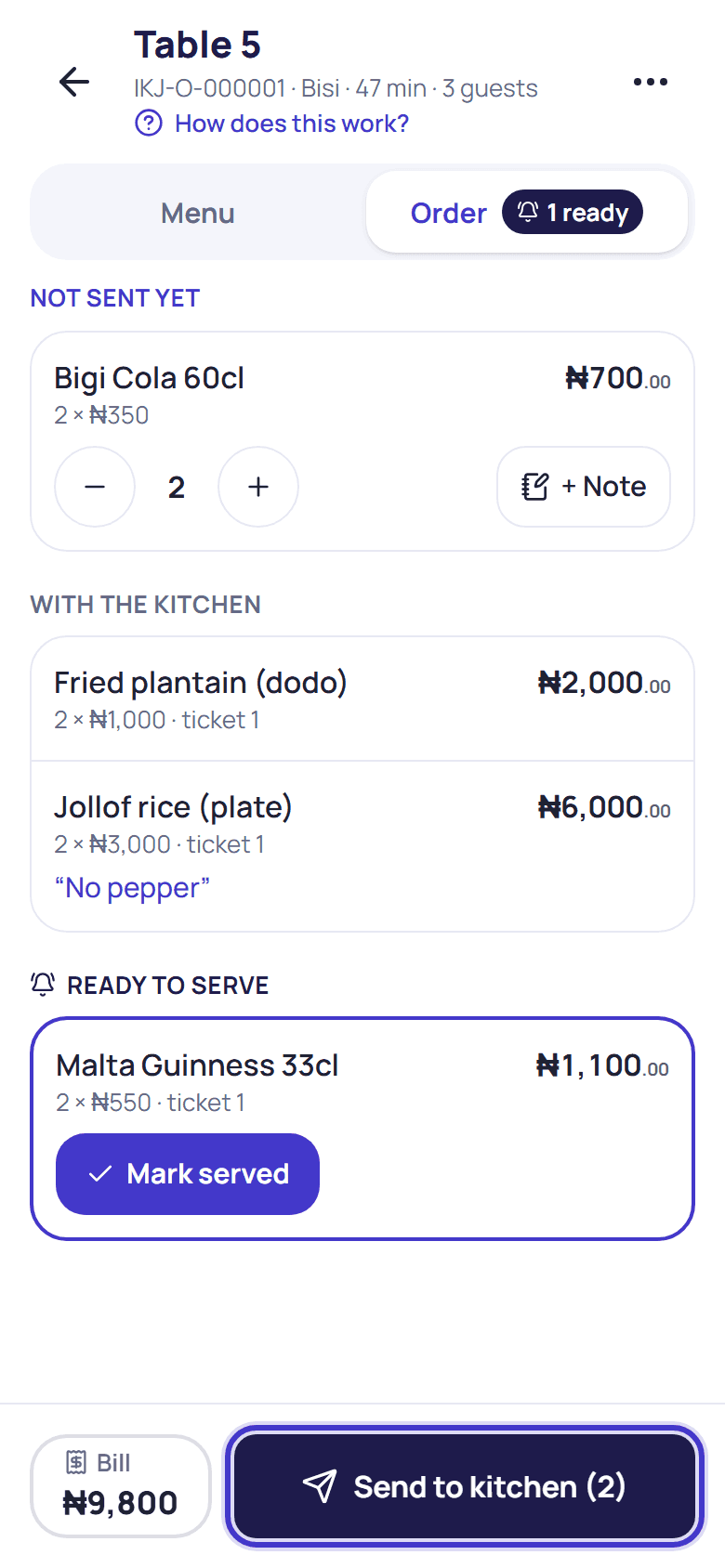
Tap Send to kitchen (N) at the bottom. N is how many new items you're sending. ShopBook shows Sent to the kitchen with a ticket number.
Step 3: Food to the kitchen, drinks to the bar
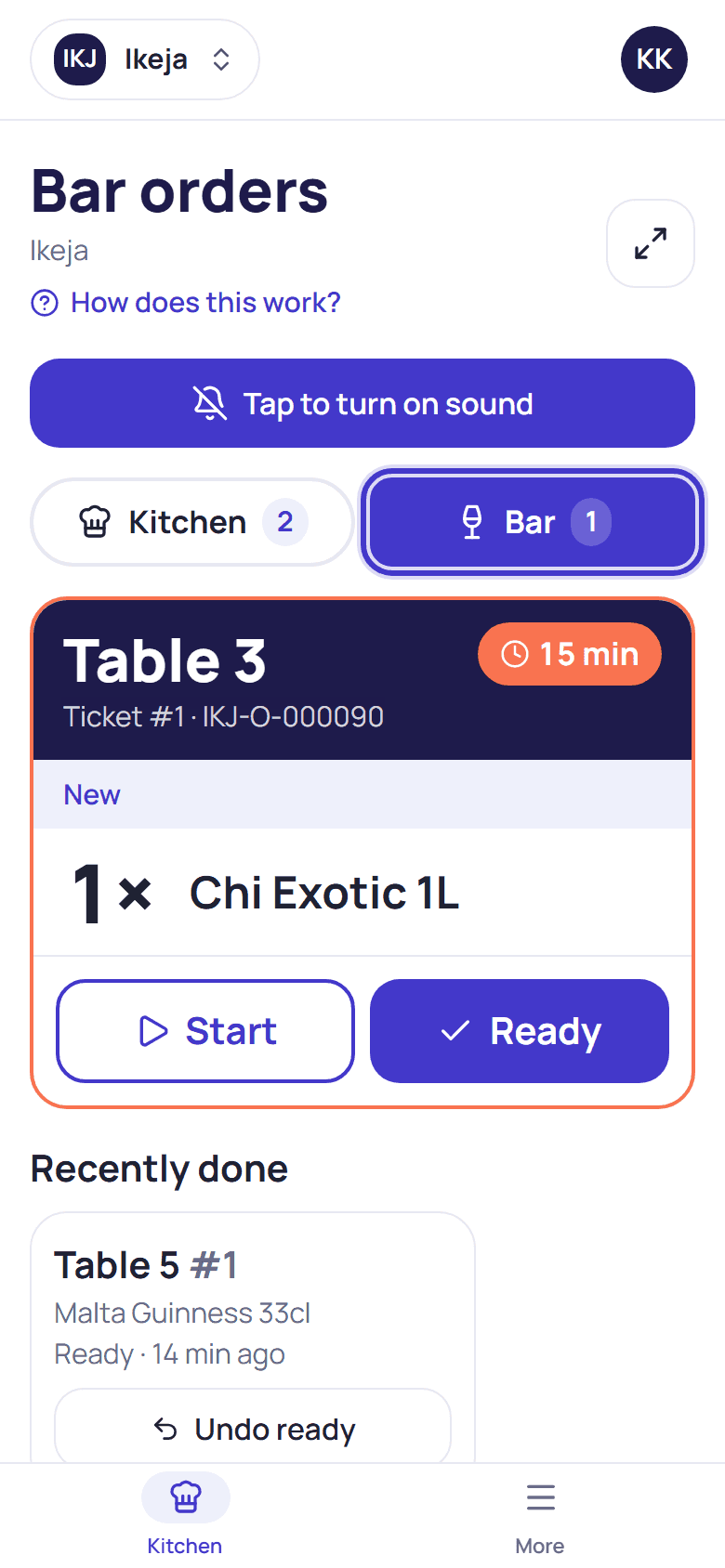
Read: Set up your menuEach item goes to the screen its category is set to: Kitchen or Bar. One tap sends both.
Step 4: Watch the order
Read: Serve food and drinksSent items move to With the kitchen. When the kitchen taps Ready, they move to Ready to serve, and the table's tile shows how many are ready.
Step 5: More orders later
When the table orders again, add the new items and tap Send to kitchen (N) again. Each send is a new ticket.