Restaurant & lounge
Use the kitchen or bar screen
See new orders, start them, mark them ready, and undo a mistake.
Before you start
- A phone or tablet in the kitchen or at the bar, connected to the internet
Step 1: Choose Kitchen or Bar
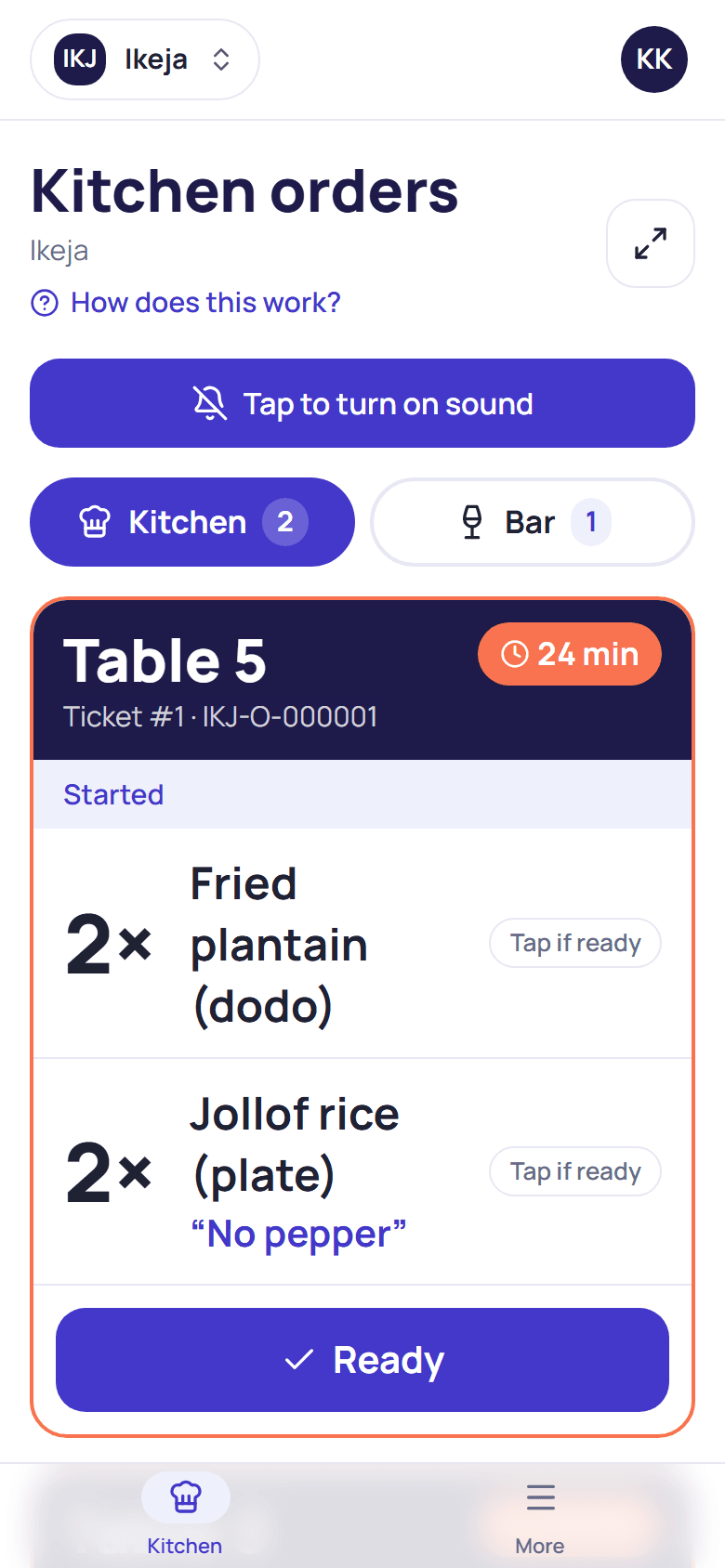
At the top, tap Kitchen or Bar. The number next to each shows how many tickets are waiting. This phone or tablet remembers your choice.
Step 2: Turn on the sound
Tap Tap to turn on sound. It changes to Sound on, and a ding plays when a new order arrives.
Be careful:Phones only allow sound after a tap, so do this every time you open the screen.
Step 3: Go full screen
Tap the full screen button (the square with arrows) next to the sound button. The screen also stays awake while it's open. Tap it again to leave full screen.
Step 4: Read a ticket
Each card is one order from one table, oldest first. It shows the table, how long ago it was sent, each item and any note. A ticket that has waited 15 minutes or more gets a coloured border.
Step 5: Start and Ready
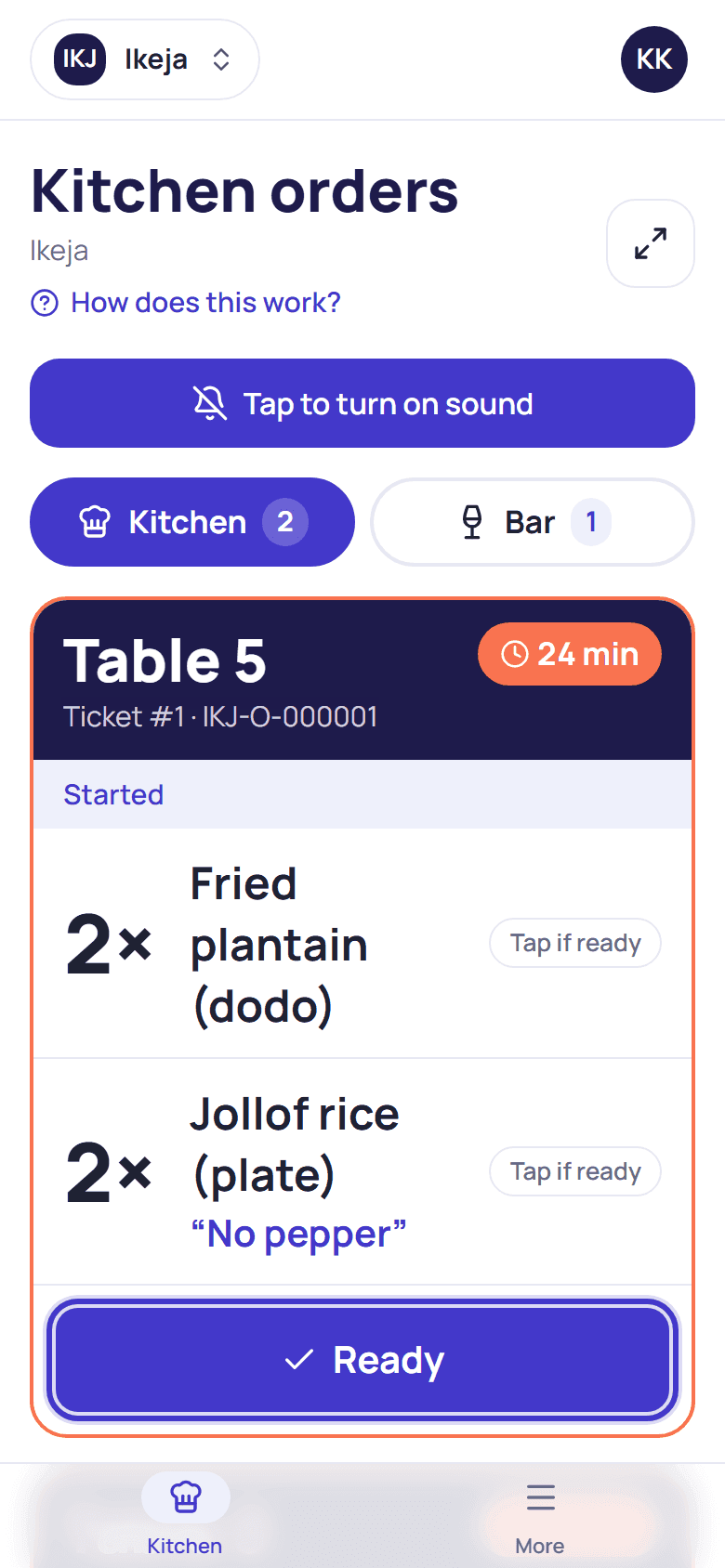
Tap Start when you begin making it. Tap Ready when everything is done. The waiter sees it straight away.
Tip:Drinks done before the food? Tap an item marked Tap if ready to mark only that item. Then tap Rest ready when the rest is done.
Step 6: Undo a mistake
Finished tickets move to Recently done. Tapped Ready by mistake? Tap Undo ready on that ticket and it goes back on the screen. This works until the waiter marks it served.
Step 7: Cancelled orders
If a manager cancels an item, the ticket shows Cancelled. If the whole ticket was cancelled, it says Stop: this order was cancelled. Stop making it.