Business settings
Change your business details and logo
Update your business name, phone, address and time zone, and add your logo.
Step 1: Open Business
Tap Settings in the menu, then the Business tab. You see Your business.
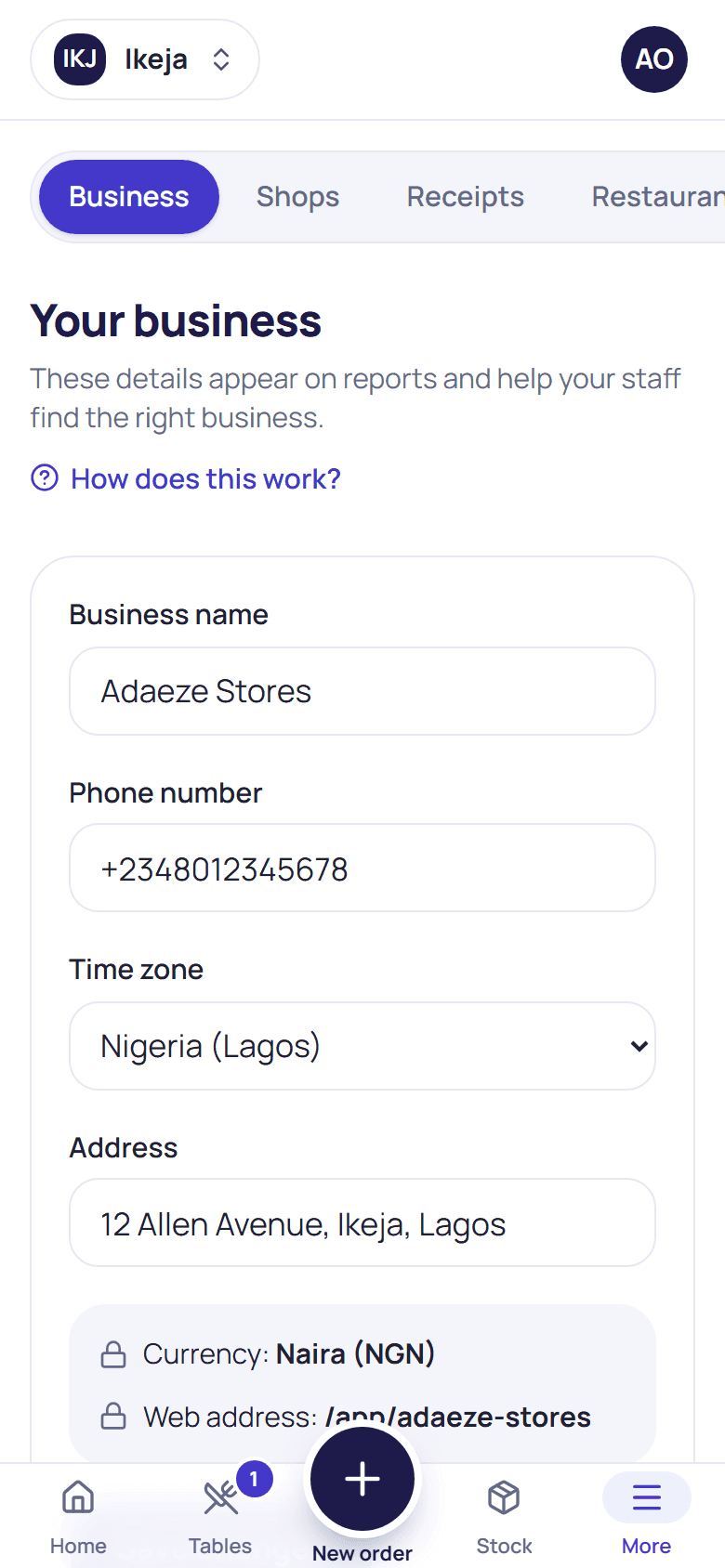
Step 2: Change the details
Edit the Business name, Phone number or Address. Check the Time zone is right for where you are. Tap Save changes.
Be careful:The time zone decides when ShopBook's day starts and ends. If it's wrong, sales after midnight can land on the wrong day in your reports.
Step 3: What you can't change here
Currency (Naira) and your Web address are fixed. They show with a small lock.
Read: Add another shop (branch)Tip:Each shop has its own name, address and phone for receipts. Change those in Settings → Shops.
Step 4: Add your logo
Under Logo, tap Add photo and choose a picture of your logo. It saves by itself. Use Change photo to replace it or Remove photo to take it off.
Read: Put QR codes on your tablesTip:Your logo shows at the top of the menu guests see when they scan a table QR code.