Buying stock
Keep a list of your suppliers
Save the people you buy from, pick them when you record stock, and see how much you've bought from each.
Step 1: Add a supplier while recording stock
On Record stock bought, open Supplier (optional) and choose + New supplier… at the bottom. Type the New supplier's name, for example Mile 12 Wholesalers, and their Phone (optional). They're saved to your list when you tap Save and add stock.
Tip:If you type a name that's already on your list, ShopBook uses that supplier instead of making a second one.
Step 2: Open the Suppliers screen
Tap Suppliers in the menu, or the Suppliers button on Stock bought. You see each supplier with how many purchases, the date of the last one and the total you've spent with them.
Tip:Tap a supplier's phone number to call them.
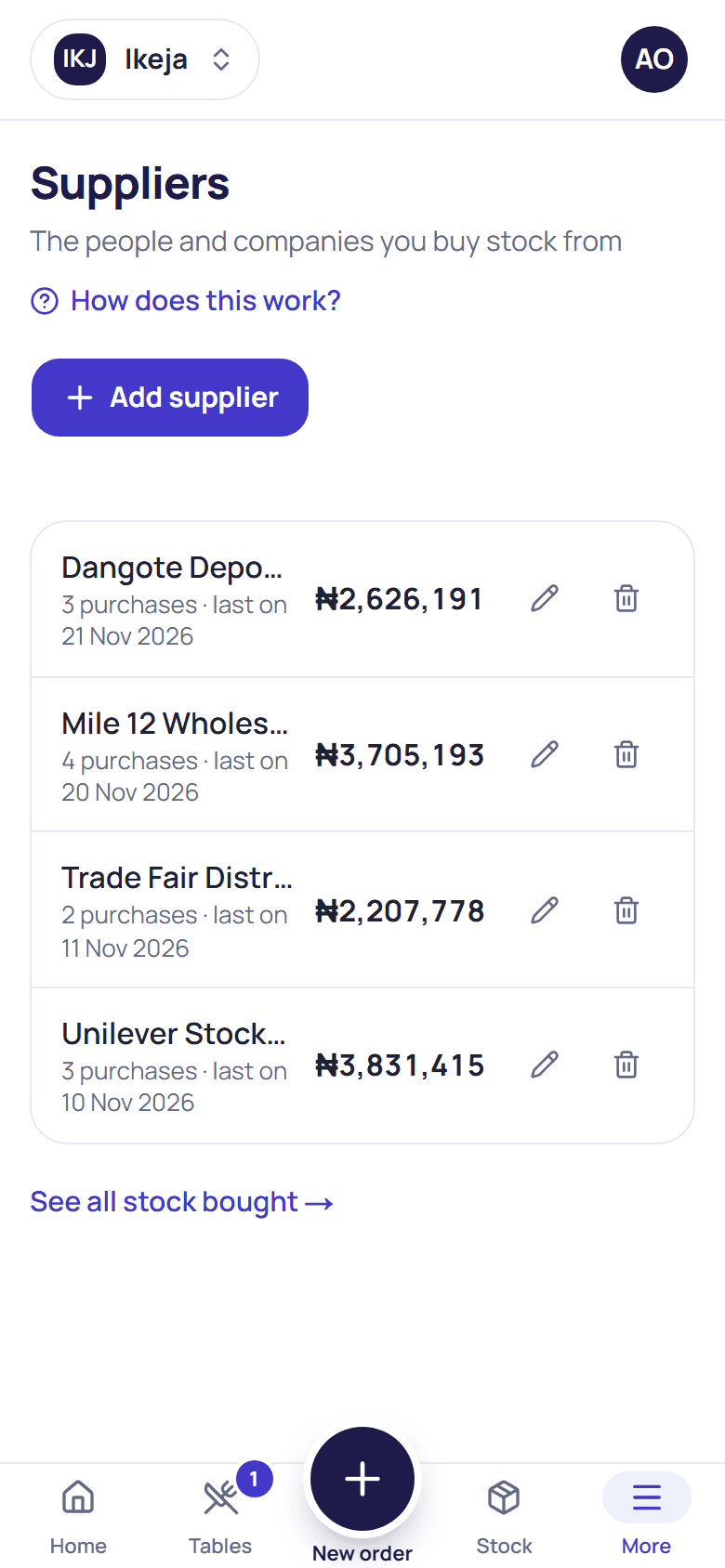
Step 3: Add a supplier from the list
Tap Add supplier, type the Name and Phone (optional), then tap Save.
Step 4: Change a supplier
Tap the pencil next to the supplier, fix the name or phone and tap Save.
Step 5: Remove a supplier
Tap the bin next to the supplier, then Remove supplier. Tap Keep if you changed your mind.
Be careful:Past stock bought from them keeps their name, but it no longer counts in their totals, even if you add them again.
Step 6: One list for the whole business
Your suppliers are shared by all your shops. The totals include what every shop bought from them. Cancelled purchases don't count.