Getting started
Find your way around
Where everything is: the menu, the phone bottom bar, switching shops and your account.
Step 1: On a computer: the menu on the left
The dark menu on the left lists everything you're allowed to use, in groups: Sell, Restaurant, Stock, Money, Reports and Settings. Tap Collapse menu at the bottom to make it smaller.
Tip:You only see what your job needs. A cashier won't see profit; a waiter mostly sees Tables.
Step 2: On a phone: the bar at the bottom
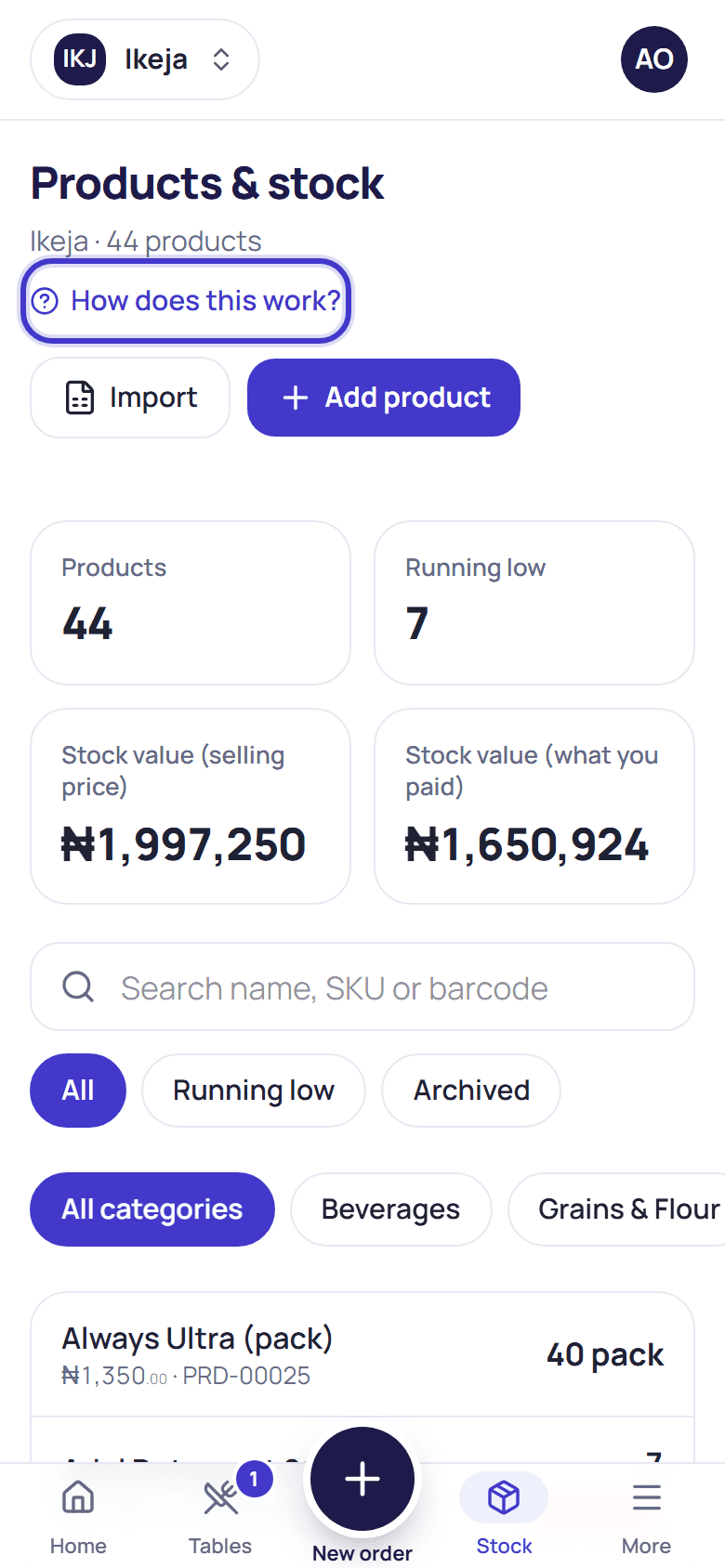
The most-used screens sit at the bottom of the screen. The big + button in the middle is New sale in a shop, or New order in a restaurant. Everything else is under More.

Step 3: Switch between shops
Tap the shop name at the top and choose another shop. Owners and admins can choose All shops to see sales, expenses, debts and reports for every shop added together.
Be careful:In All shops you can look but not sell. Pick one shop to make a sale.
Step 4: Your account
Tap your initials (top right on a phone, bottom of the menu on a computer) to change between Light and Dark look, open Help & guides, or Sign out.
Step 5: Getting help on any screen
Look for How does this work? under a screen's title. It opens the guide for that exact screen. You can also open Help & guides from the menu at any time.