Restaurant & lounge
Turn on restaurant mode
Switch a shop to restaurant & lounge mode and set your service charge, VAT and quick notes.
Step 1: Open the restaurant settings
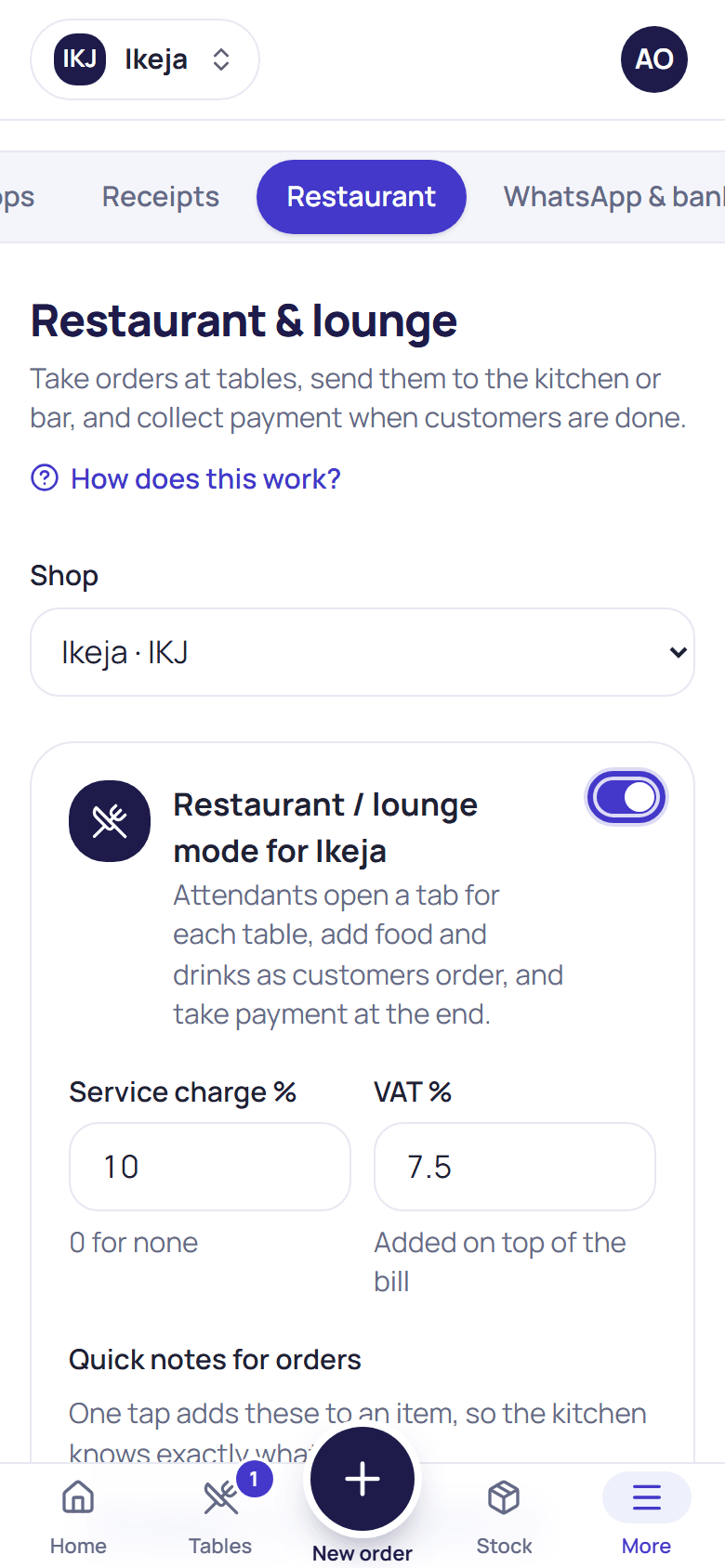
Tap Settings in the menu, then Restaurant. If your business has more than one shop, choose the right one under Shop first. Each shop is set up on its own.
Tip:Chose Restaurant or lounge when you signed up? Restaurant mode is already on. You only need to check the settings below.
Step 2: Switch it on
Turn on the switch next to Restaurant / lounge mode for your shop. More settings appear under it.
Step 3: Service charge
Type your Service charge %, for example 10. Type 0 if you don't charge one. It's added to every bill and shown as its own line.
Step 4: VAT
Type your VAT %, for example 7.5. It's added on top of the bill. Leave it at 0 if you don't charge VAT.
Tip:Service charge and VAT are both worked out on the food and drinks after any discount. Neither can be more than 50%.
Step 5: Quick notes for orders
Quick notes are one-tap notes a waiter adds to an item, so the kitchen knows exactly what to do. ShopBook starts you with No pepper, Extra cold, Well done and Takeaway.
- To add one, type it in the box (for example Less ice) and tap Add.
- To remove one, tap the × next to it.
Tip:Keep them short. You can have up to 12 quick notes.
Step 6: Save
Tap Save. The menu now has a Restaurant group with New order, Tables, Kitchen & bar and Tables & settings.
Be careful:If you only see Only a manager or the owner can change these settings., your role can't change them. Ask the owner.
Step 7: Next: add your tables
Read: Add tables and areasOn the same screen, add your tables so waiters can tap one to start an order.