Staff
Invite someone to work with you
Send a staff member an email invite, choose what they can do and which shop they work at.
Before you start
- The person's email address
- An idea of what they will do: sell, manage, wait tables, cook…
Step 1: Open Staff
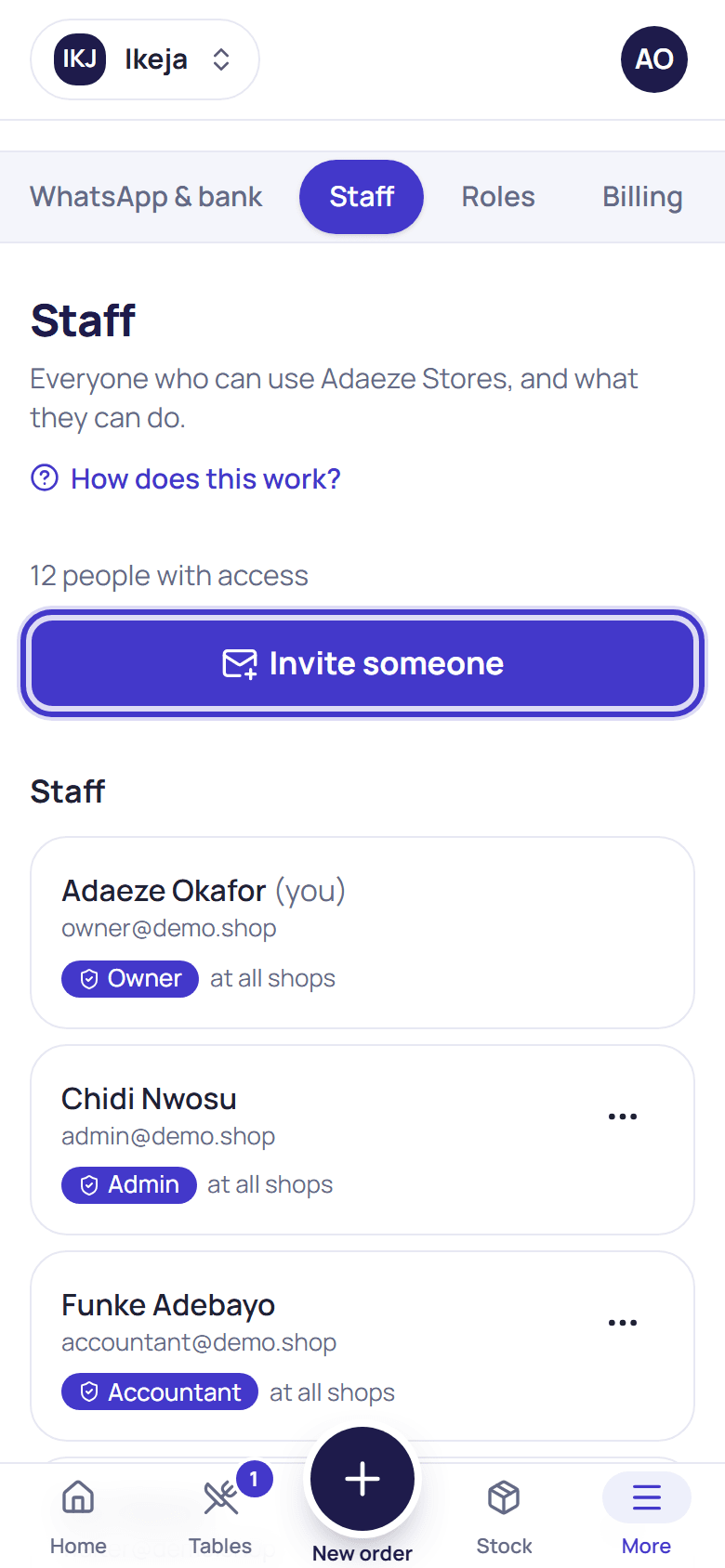
Tap Staff in the menu. You see everyone who can use ShopBook, and anyone still Waiting to join. Tap Invite someone.
Tip:Every person needs their own email. Don't share one login between staff: you won't know who made which sale.
Step 2: Type their email
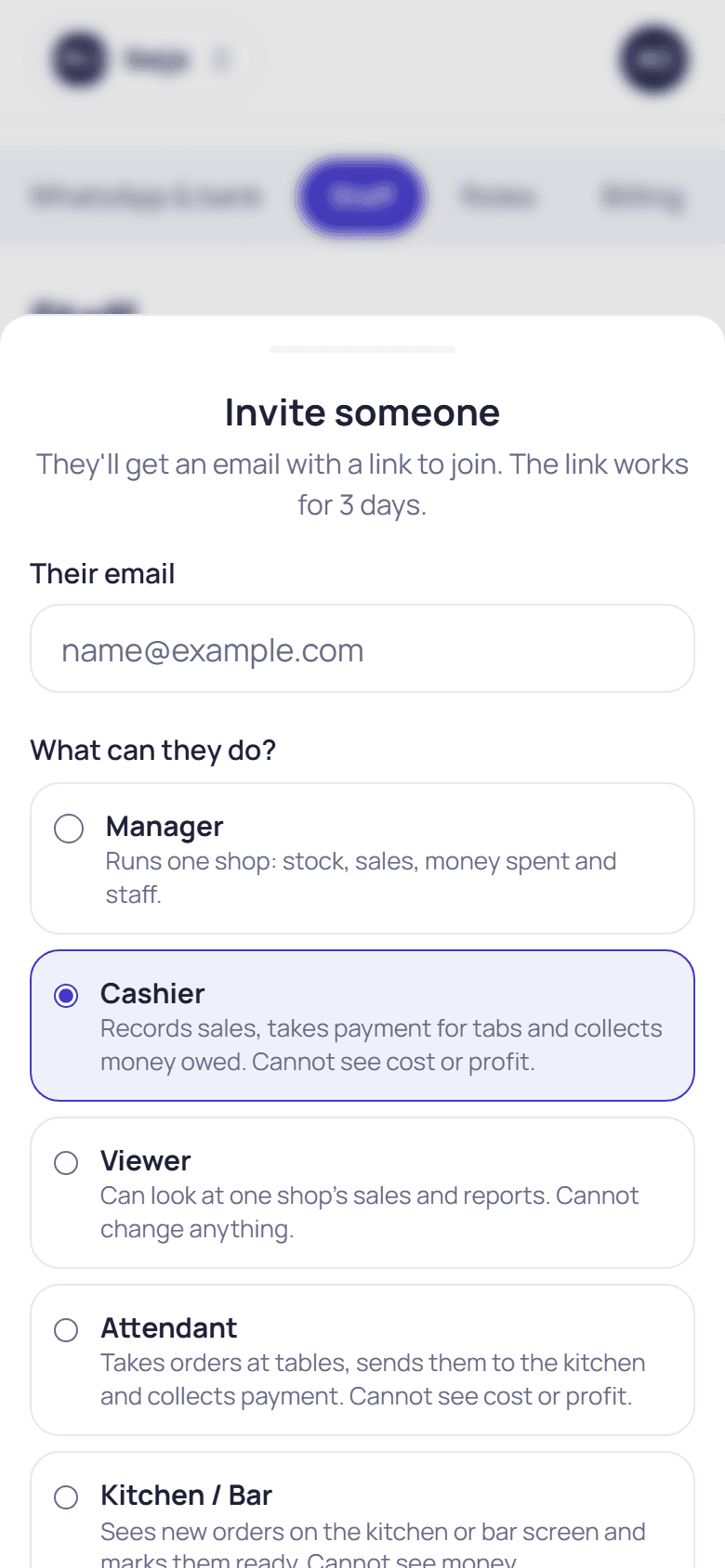
Under Their email, type the email address they use on their phone (for example chidi@gmail.com).
Step 3: Choose what they can do
Under What can they do? tap one role. Each one has a short line saying what it allows. Roles marked · all shops cover every shop in the business. Roles marked · your own role are ones your business created.
Read: Which role should I choose?Be careful:A manager can only give the Cashier, Viewer, Attendant and Kitchen / Bar roles. Only the owner or an admin can invite a manager or an admin.
Step 4: Pick the shop
If you have more than one shop, choose it under Which shop?. The person will only see that shop. You don't pick a shop for Admin or Accountant: they see all shops.
Step 5: Send the invite
Read: You were invited: how to joinTap Send invite. They get an email from ShopBook with a button to join. The link works for 3 days.
Step 6: Follow up if they didn't get it
Until they join, they show under Waiting to join. Tap Send again to send a fresh email (it also gives them another 3 days), or Cancel to take the invite back.
Tip:Tell them to check their Spam or Promotions folder if the email doesn't show up.